
Tasks
A kanban task board for small business teams
For cafés, shops and service teams: assign tasks to staff, set a due date and a priority, and move each card across the board until it is done. On every plan.
14 days free trial.No credit card.
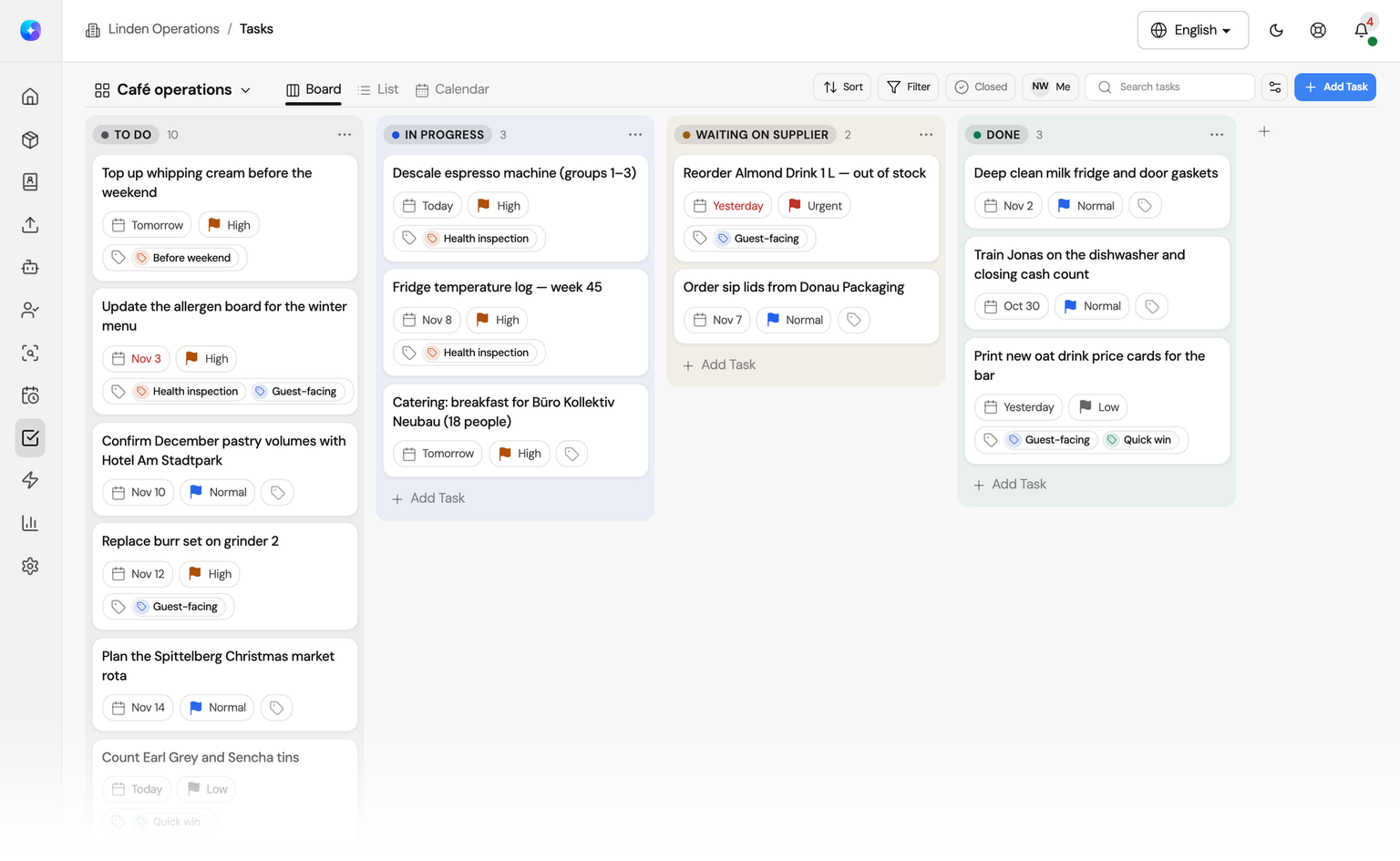
Task management instead of notes and group chats
A note on the fridge does not say who has it or when it is due. A task in Orchido does.
With notes and chats
- A job is agreed in a chat and lost a day later.
- Nobody knows who took the delivery problem.
- The deadline lives in one person’s head.
With Orchido Tasks
- Each job is a task with assignees, a due date and a priority.
- The board shows what is open, in progress and done.
- Comments and changes stay on the task.
Kanban board, list and calendar
Plan the work on a board, sort it in a list or place it on a calendar. Your whole organization sees each board.
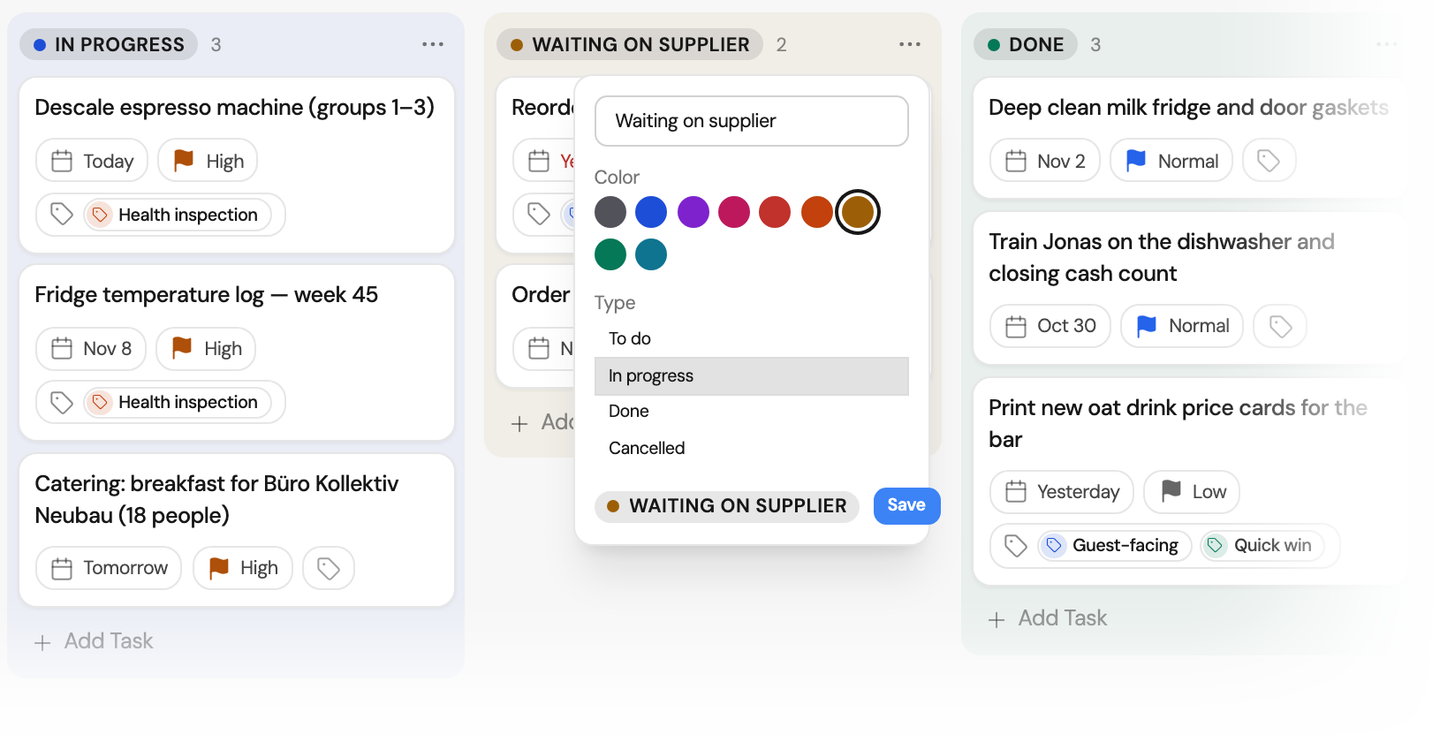
Columns and statuses
Build the board around your routine
Add columns such as Waiting on supplier, give each a name and one of nine colors, and set its type: To do, In progress, Done or Cancelled. Reorder columns, and when you delete one, move its tasks to another. Drag a card to the next column as the work moves.
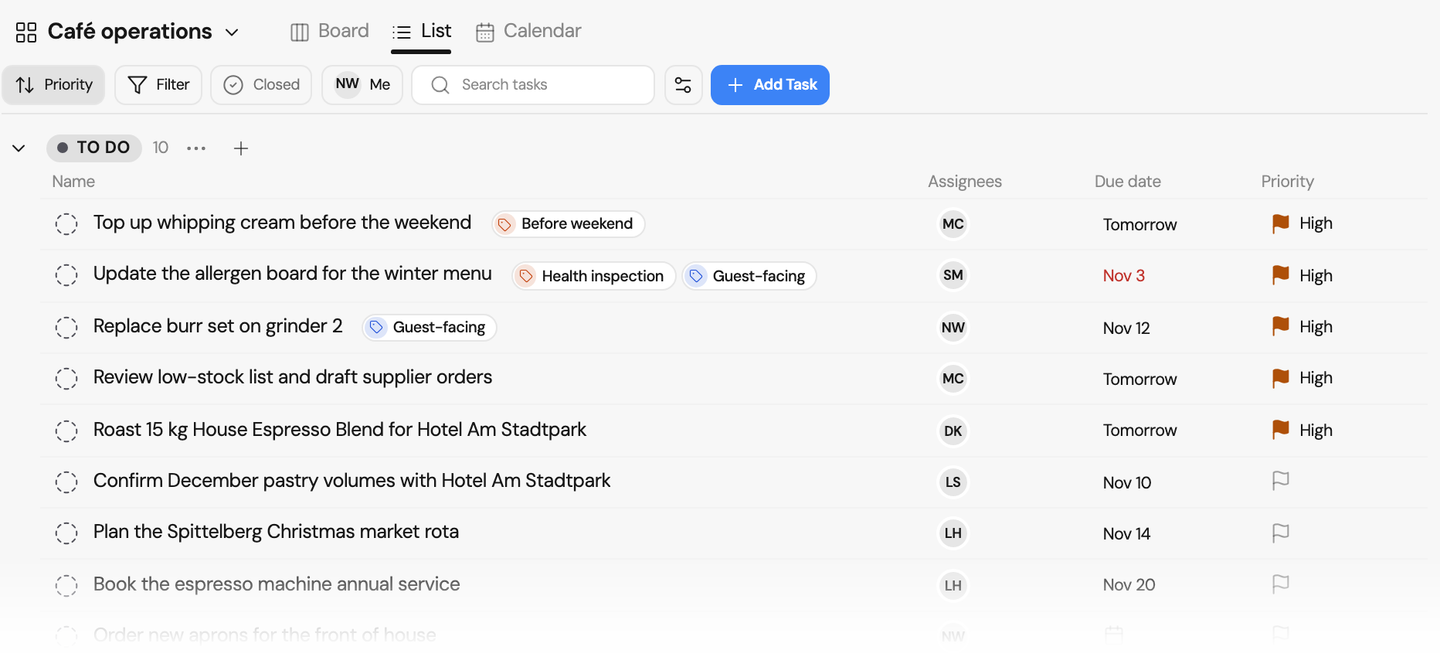
List view
Read the team to-do list as a table
The list view groups tasks by status with their assignees, due date and priority. Sort by name, assignee, priority, due date, start date, time estimate or the date a task was created, updated or completed.
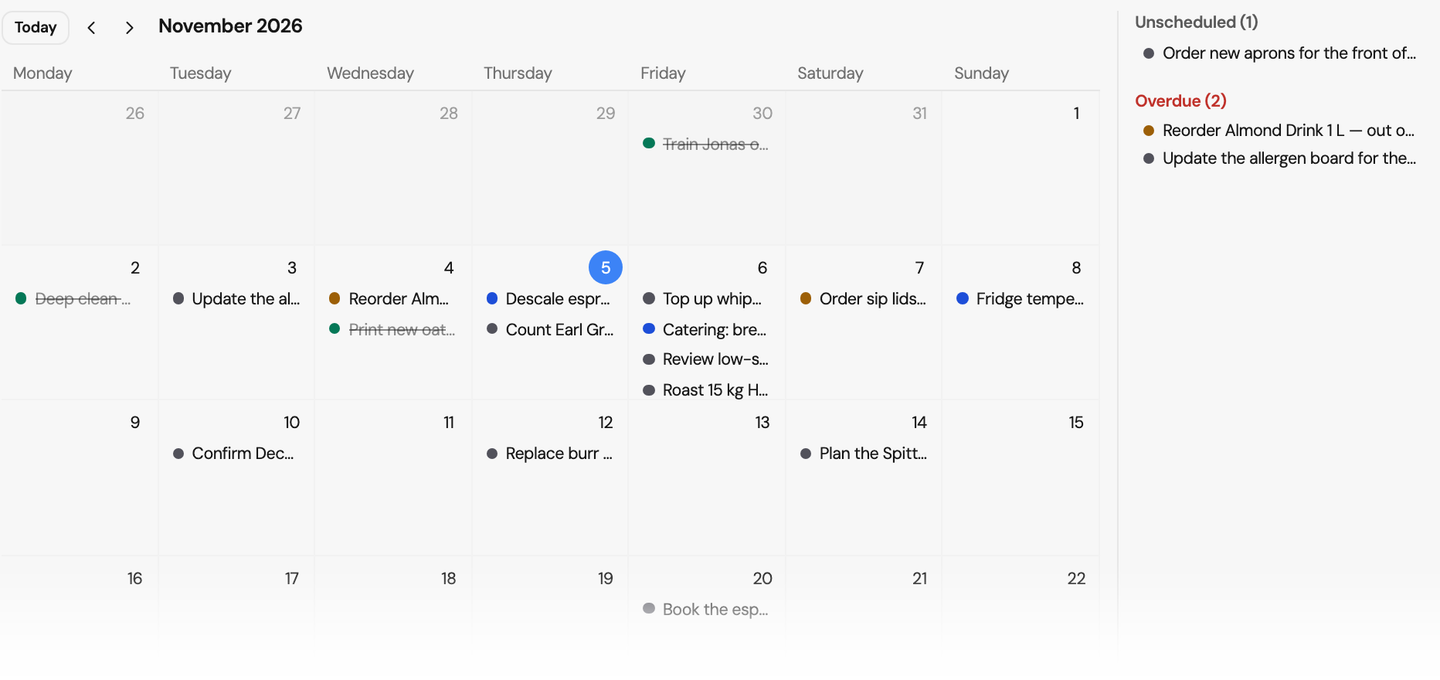
Calendar view
See every due date on a calendar
The month view places each task on its due date. Two side lists show the overdue tasks and the tasks without a date. Add a task straight onto a day.
Create your first task
Open a board, add a task and give it an assignee and a due date.
No credit card required.
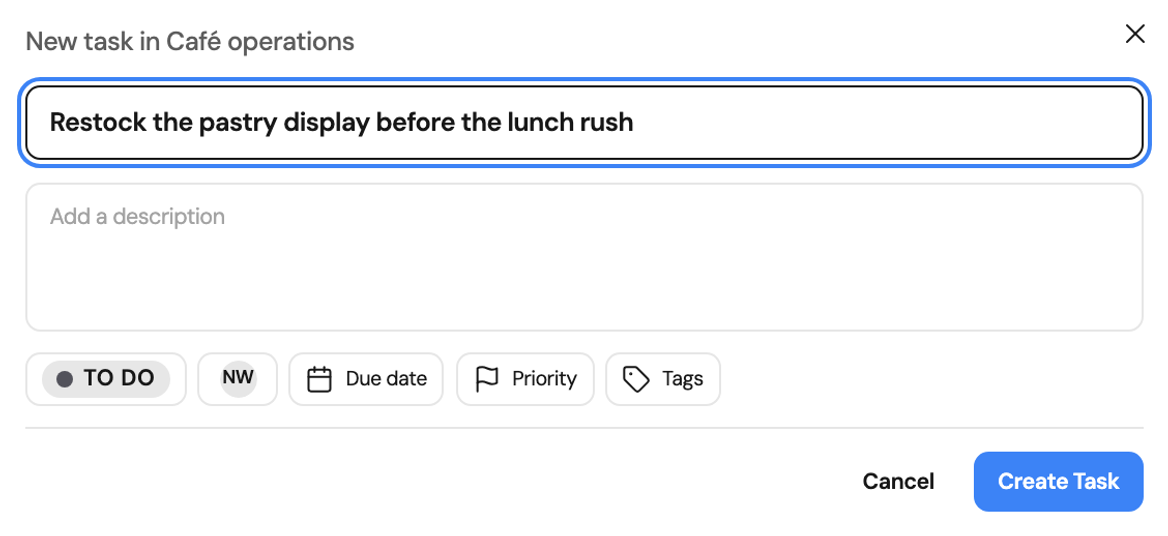
Assign tasks to staff and talk them through
Give each task an owner, a date and a priority, and keep the discussion on it.
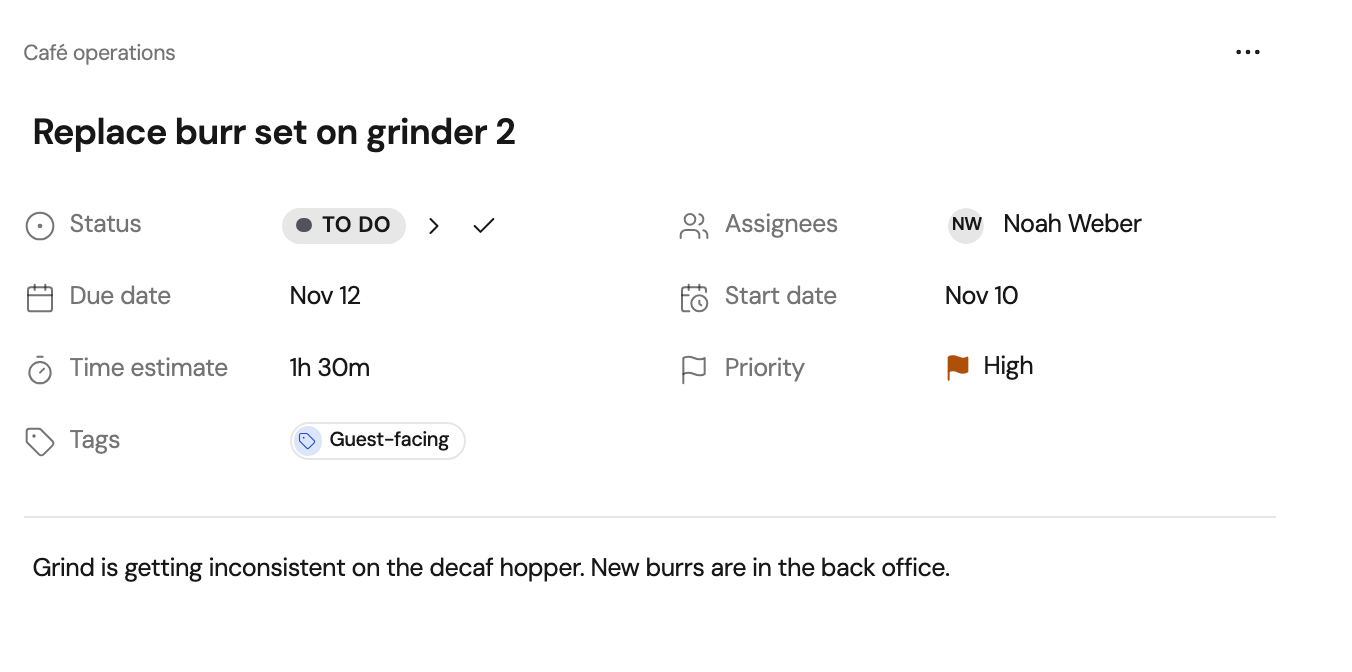
Task details
Assign tasks with a date and a priority
A task has a status, one or more assignees, a due date, a start date, a time estimate in hours and minutes, a priority from Low to Urgent, tags and a description. An overdue date shows in red. Anyone can create a tag while they work.
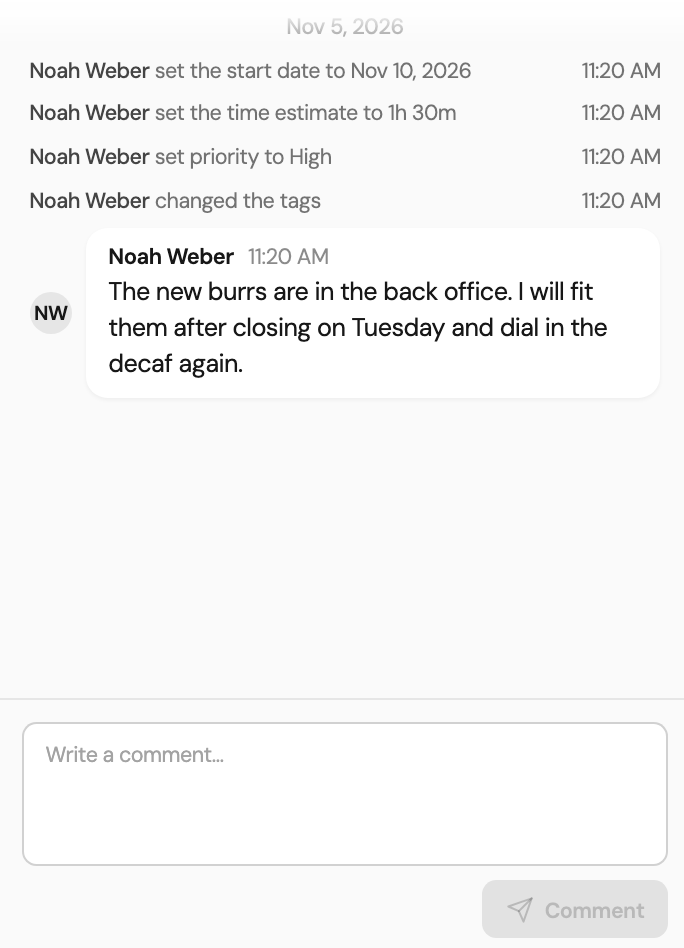
Comments and activity
Keep the conversation on the task
Discuss a task in its comments. The activity history records each change to the status, priority, dates, assignees, tags and board, with who made it and when.
Filters, views and the overview
Find the tasks that matter now and see where the work stands.
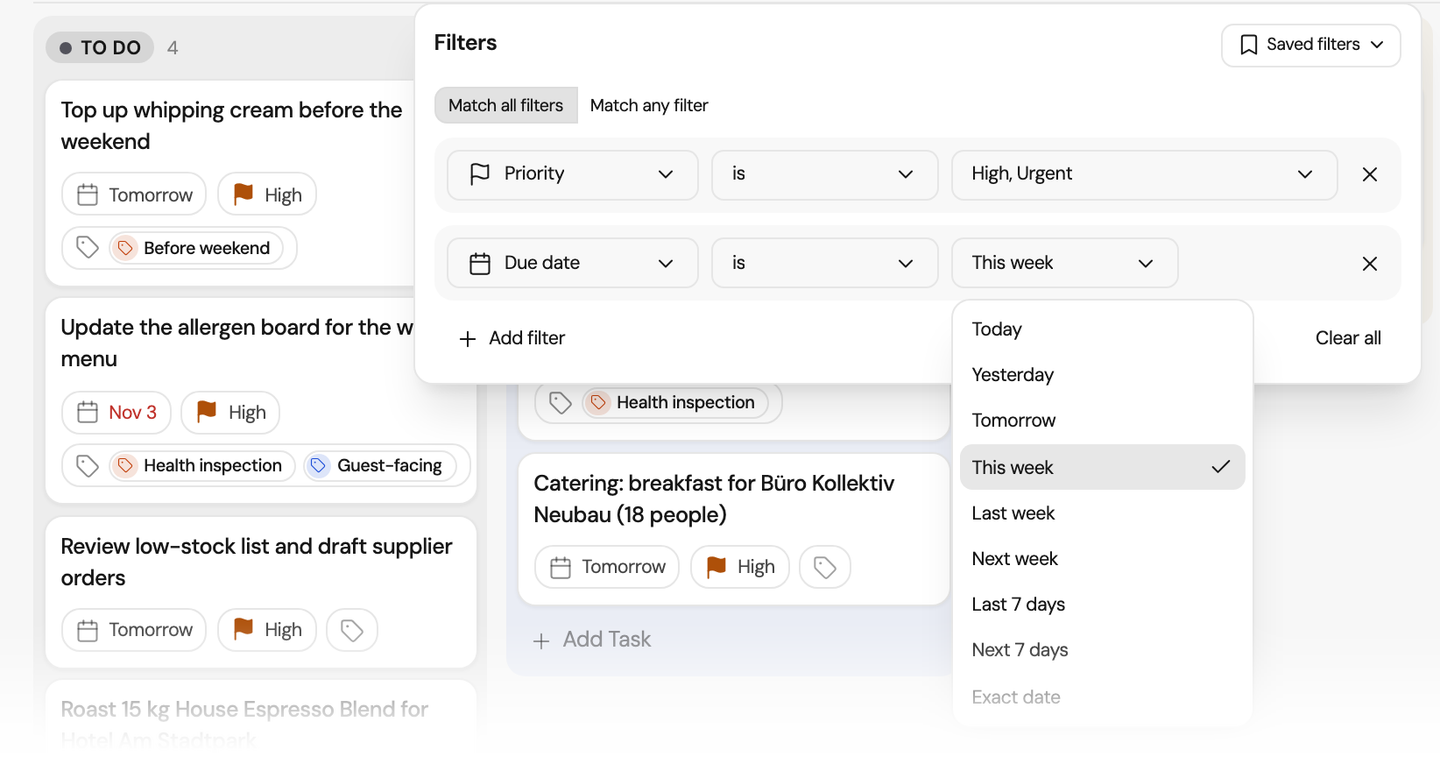
Filters and saved filters
Filter by priority, due date or assignee
Combine up to 20 filter rules on status, tags, priority, assignee, creator and dates, and match all or any of them. Pick a relative date such as Today, This week or Next 7 days. Save a filter on the board to use it again, or show only your own tasks with one click.
Saved views
Set up the board for your team
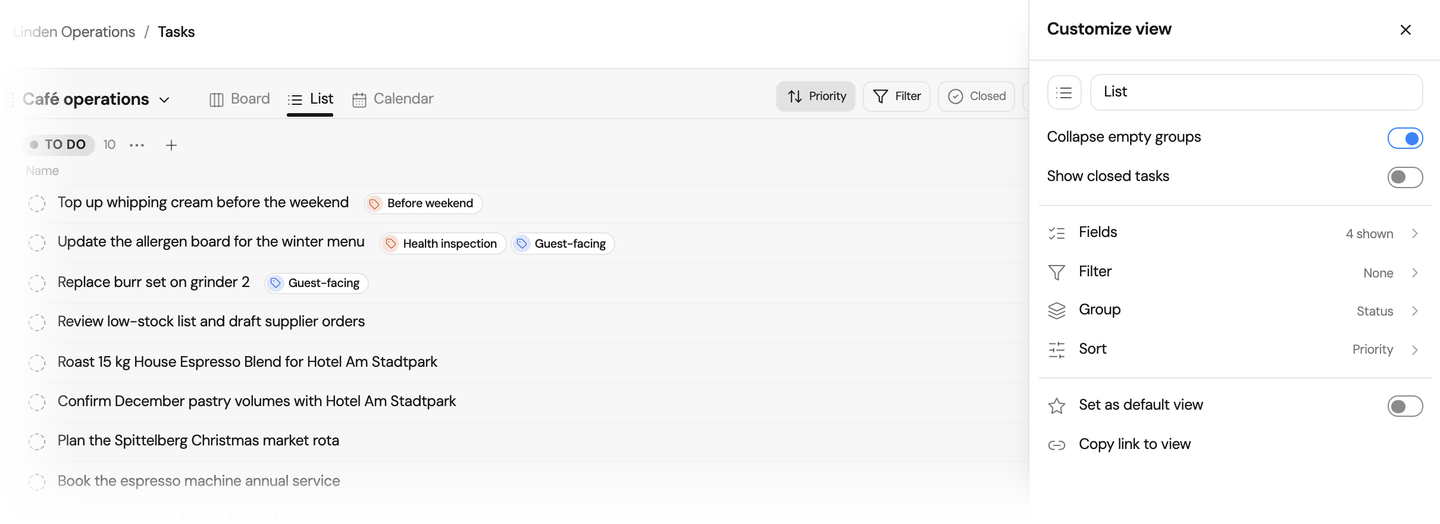
Choose the fields a view shows and, on a board, the card size. Group by status, priority or assignee, collapse empty columns or groups, or show cancelled tasks. Save the view for everyone on the board, make it the default or copy a link to it.
Tasks dashboard
See open, overdue and due-this-week tasks
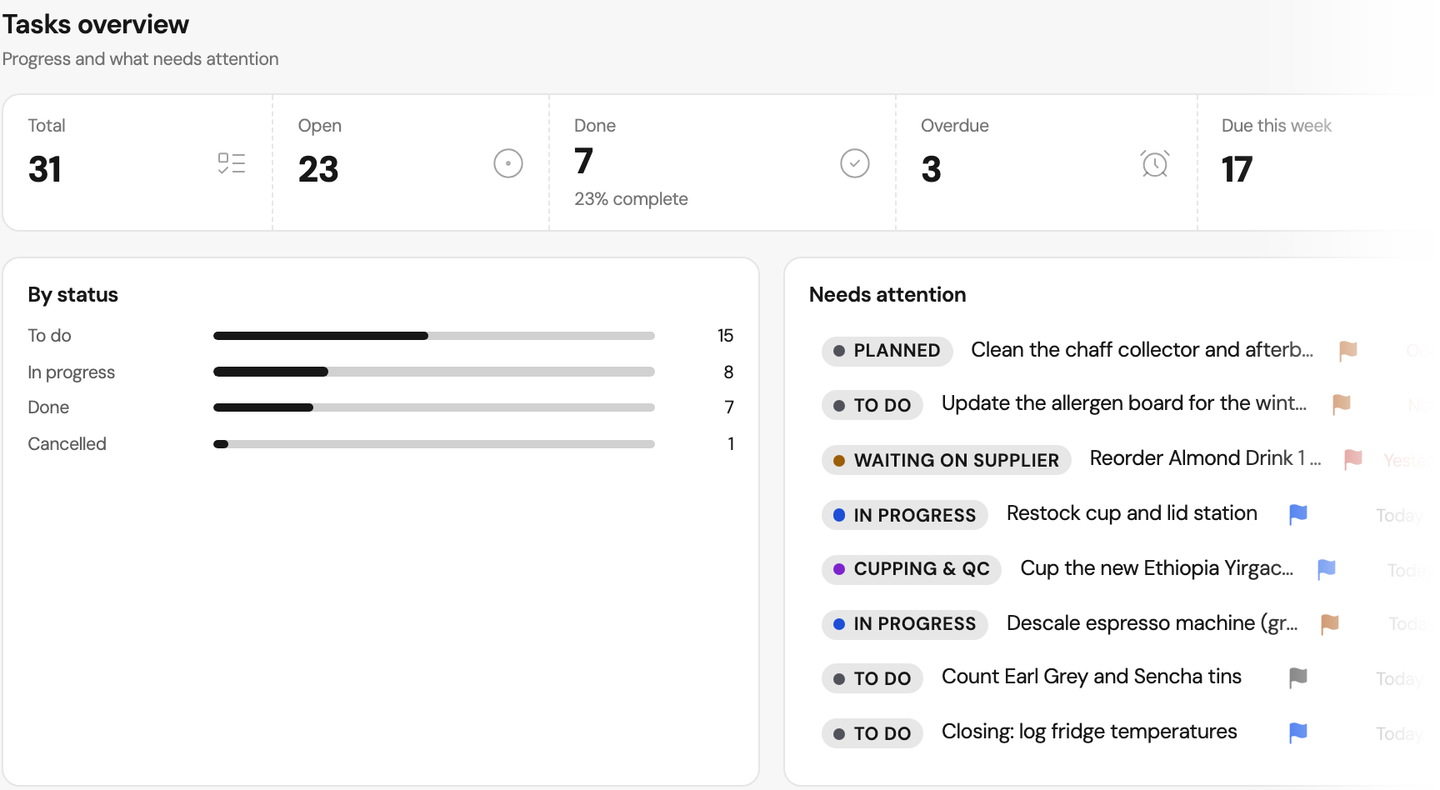
The tasks dashboard counts total, open, done, overdue and due-this-week tasks across all boards or one board. It shows the split by status, the tasks that need attention and what changed recently.
Around each task
Notifications
An assignee is notified in Orchido when a task is assigned to them. Assignees and the creator are notified when it changes status or gets a comment.
Tasks from the AI assistant
Ask the assistant to create a task, mark one done or count open tasks. It creates or completes a task only after you confirm. Professional plan.
Tasks on customer records
Link a task to a customer record and find it on the customer’s profile under Tasks.
Questions about task management
How do I assign tasks to my team?
What is a kanban board?
Can I create recurring tasks?
Does Orchido remind me before a task is due?
Who can see and edit the tasks on a board?
Can the AI assistant create tasks?
What does task management in Orchido cost?
Put your next job on a board
Create a board, add the tasks for this week and assign them.
No credit card required.
- Set up the board. Add columns for the stages your team works in.
- Add and assign. Create a task, choose who does it and set the due date.