
Operations teams
Does your operations team work from separate lists?
Keep stock, purchase orders, tasks and staff hours in one place, so everyone works from the same numbers.
14 days free trial.No credit card.
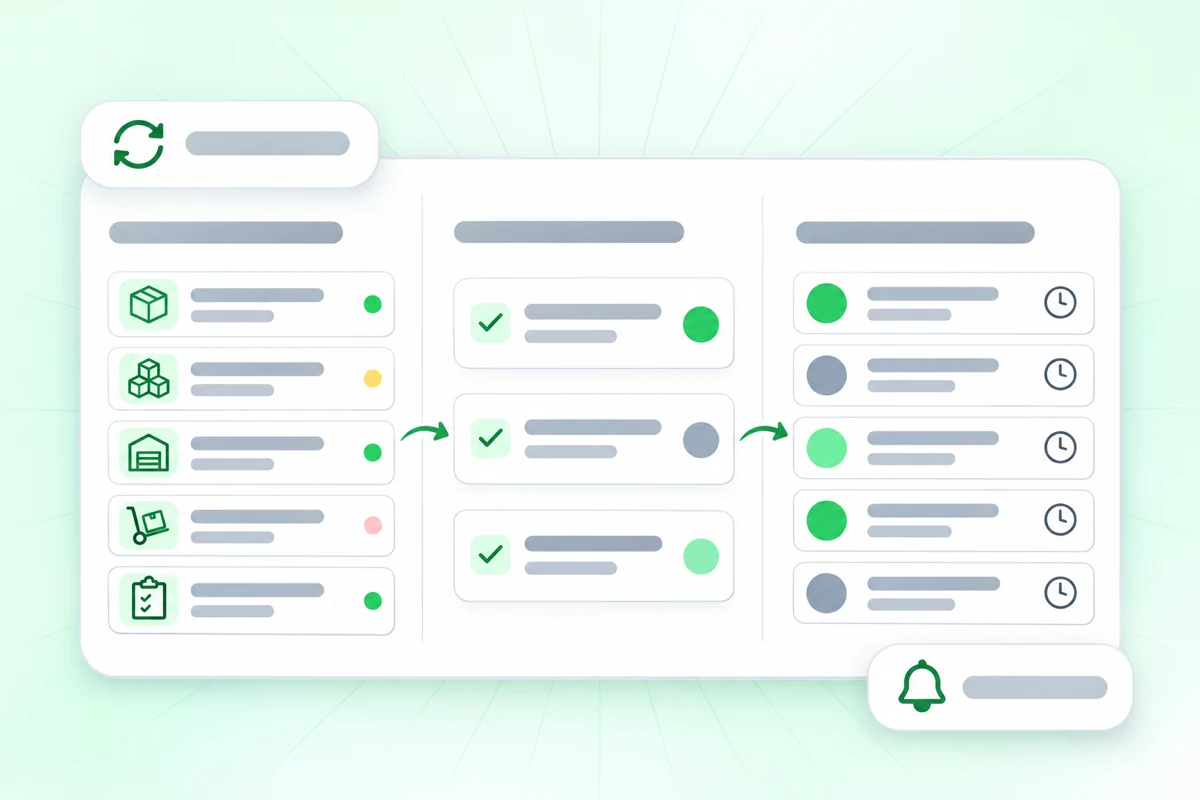
The count changed, but not for everyone
When stock and tasks sit in separate files, people act on old numbers. In Orchido they share one place.
With separate lists
- Someone updates a stock count and half the team still sees the old number.
- Tasks live in a chat and hours live on another sheet.
- Access is all or nothing: one shared login or one shared file.
With Orchido
- A change appears for other people as it happens.
- Stock, tasks and hours sit next to each other.
- Each role sees what its permissions allow, on the home page too.
What changes for your team
Several people work in the same records all day, so these three parts matter.
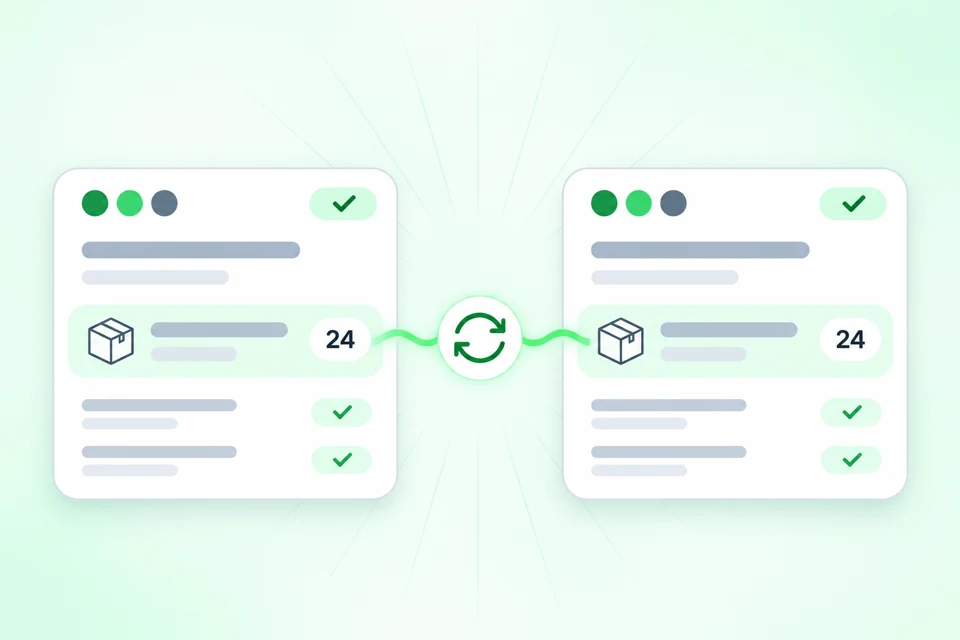
Other people see a change straight away
When one person changes stock or a task, the change appears in real time for everyone who is allowed to see it. Each person also has an inbox for notifications.
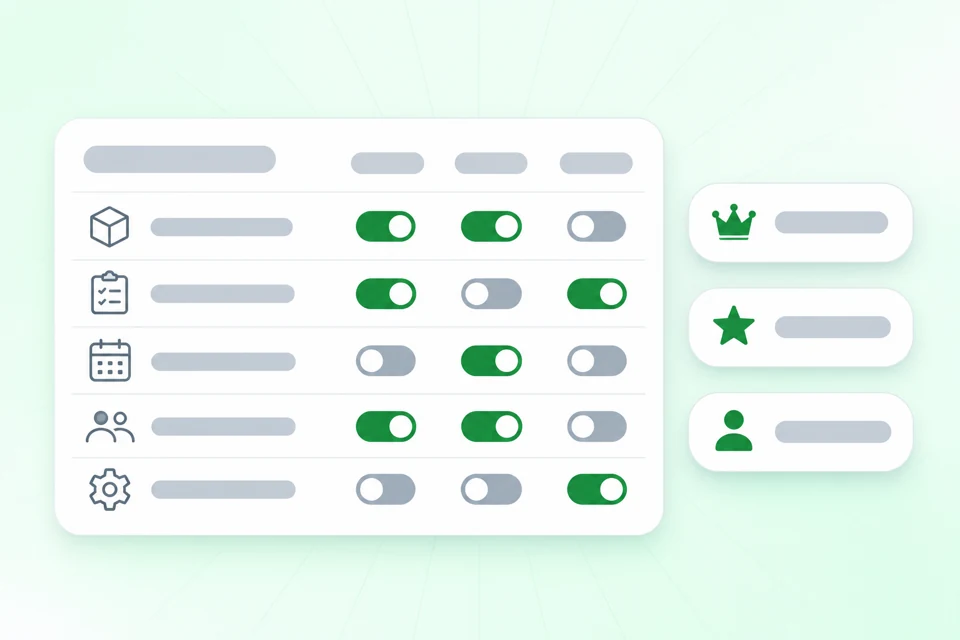
Set who can see and change what
Start from the owner, department lead and member roles, or create your own named roles. Edit the permission matrix, and the home page shows each person only the widgets their rights allow.
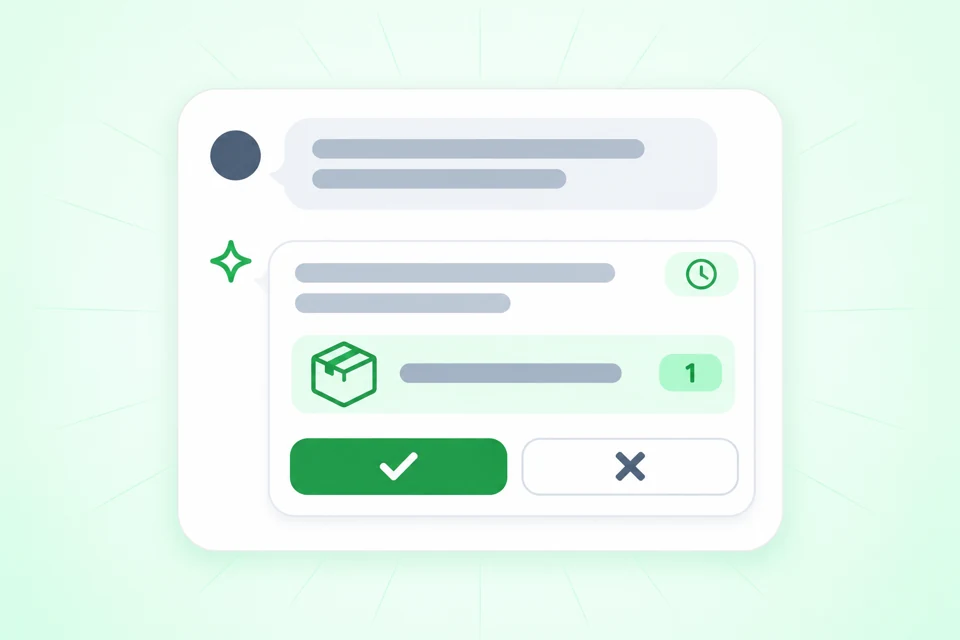
The assistant proposes, a person confirms
On the Professional plan, the assistant can enter the counted stock of an item, create a task or create a full-day time-off request, if that person’s role allows it. Nothing changes until a person confirms.
Try it with your operations team
Add your stock and tasks, invite your team and set their roles. The free trial lasts 14 days.
No credit card required.
Questions about Orchido for operations teams
Who sees what in Orchido?
Do others see my changes straight away?
Can the assistant change things on its own?
Is there one report across all areas?
Can I give a team lead more rights?
Set up Orchido for your team
Add your stock and tasks, then give each person a role.
No credit card required.
- Add stock and a task. Create your items and a first task.
- Set roles. Give each person the rights the job needs.