
Attendance
Time tracking with check-in and check-out in the app
Your team checks in and out in the Orchido app. You inspect attendance history, correct missing times with a reason, and approve or reject time-off requests.
14 days free trial.No credit card.
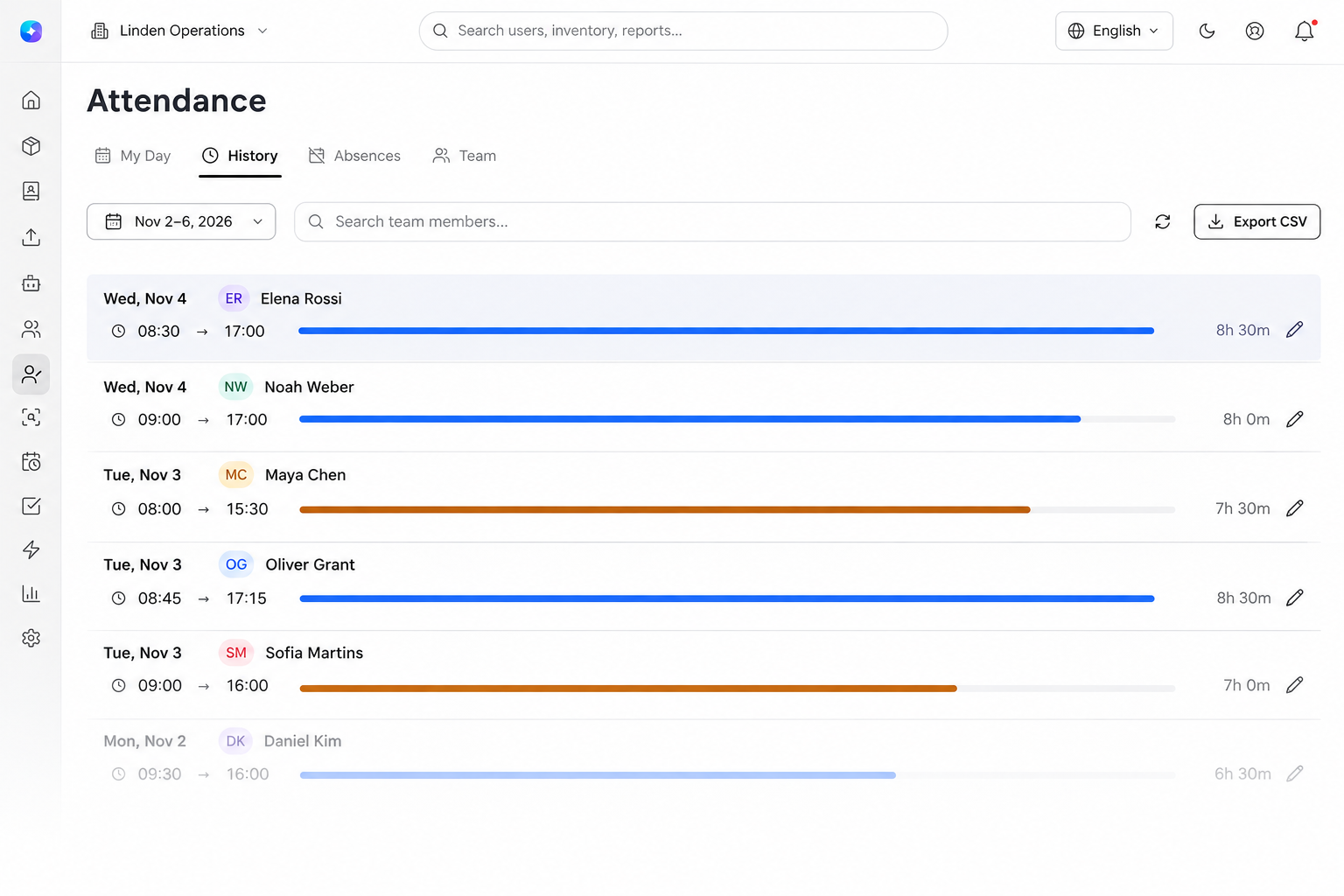
Bring recorded time into one review
When attendance notes and decisions are scattered, review starts with finding the record. Orchido gives you a dated history, editable times and visible time-off statuses.
Without a shared attendance record
- Find the day: Gather arrival and departure notes for the period.
- Resolve a gap: Follow up a missing departure before completing the record.
- Check time away: Match the time-off request to the decision that followed.
With Orchido Attendance
- Find the day: Filter History by date and, with team access, search for a person.
- Resolve a gap: An authorized user supplies the departure and a reason; the session duration updates.
- Check time away: Read Pending, Approved or Rejected on the time-off record.
From the recorded day to a reviewed record
Start with History, resolve a missing time and read the decision on time away.
History
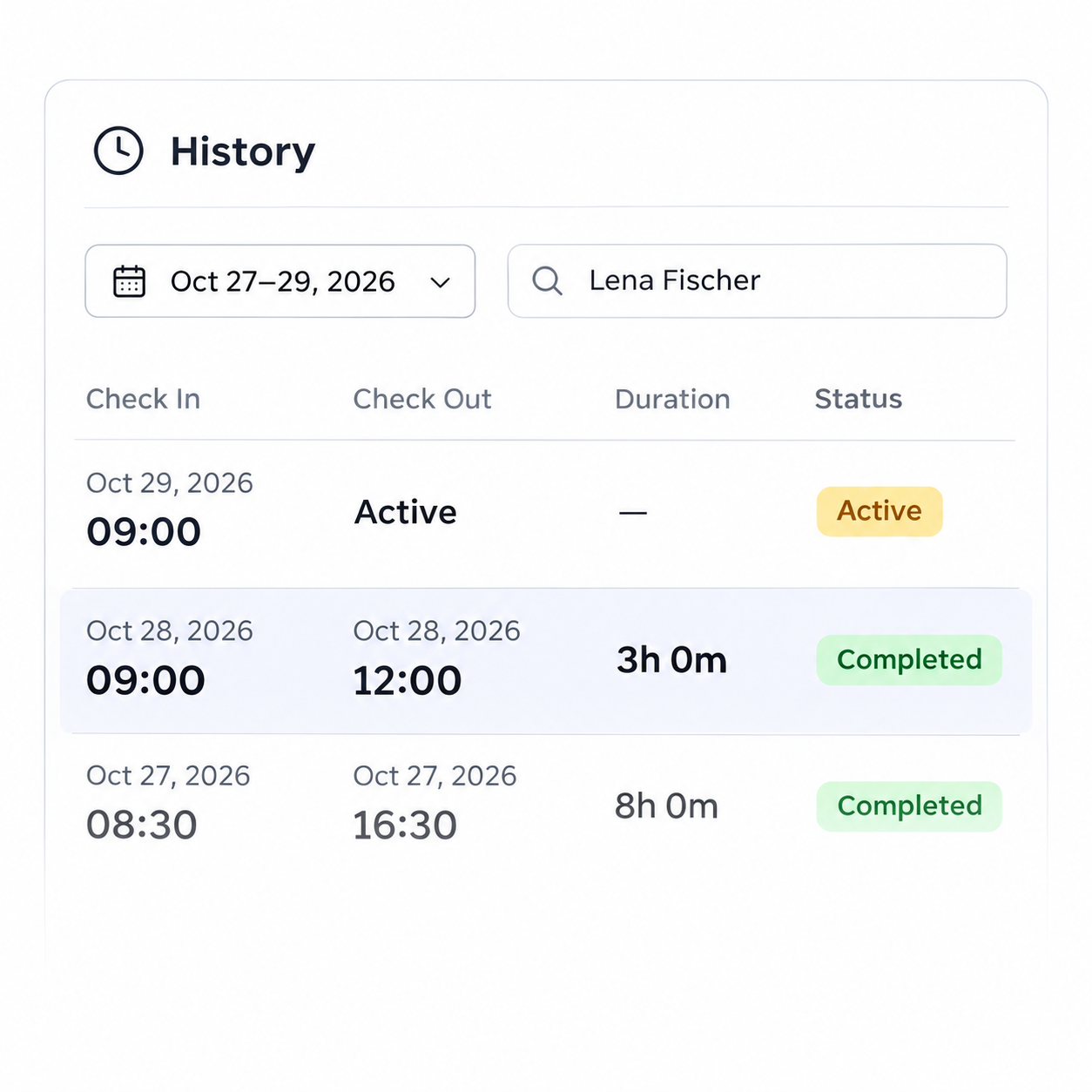
Start with the recorded day
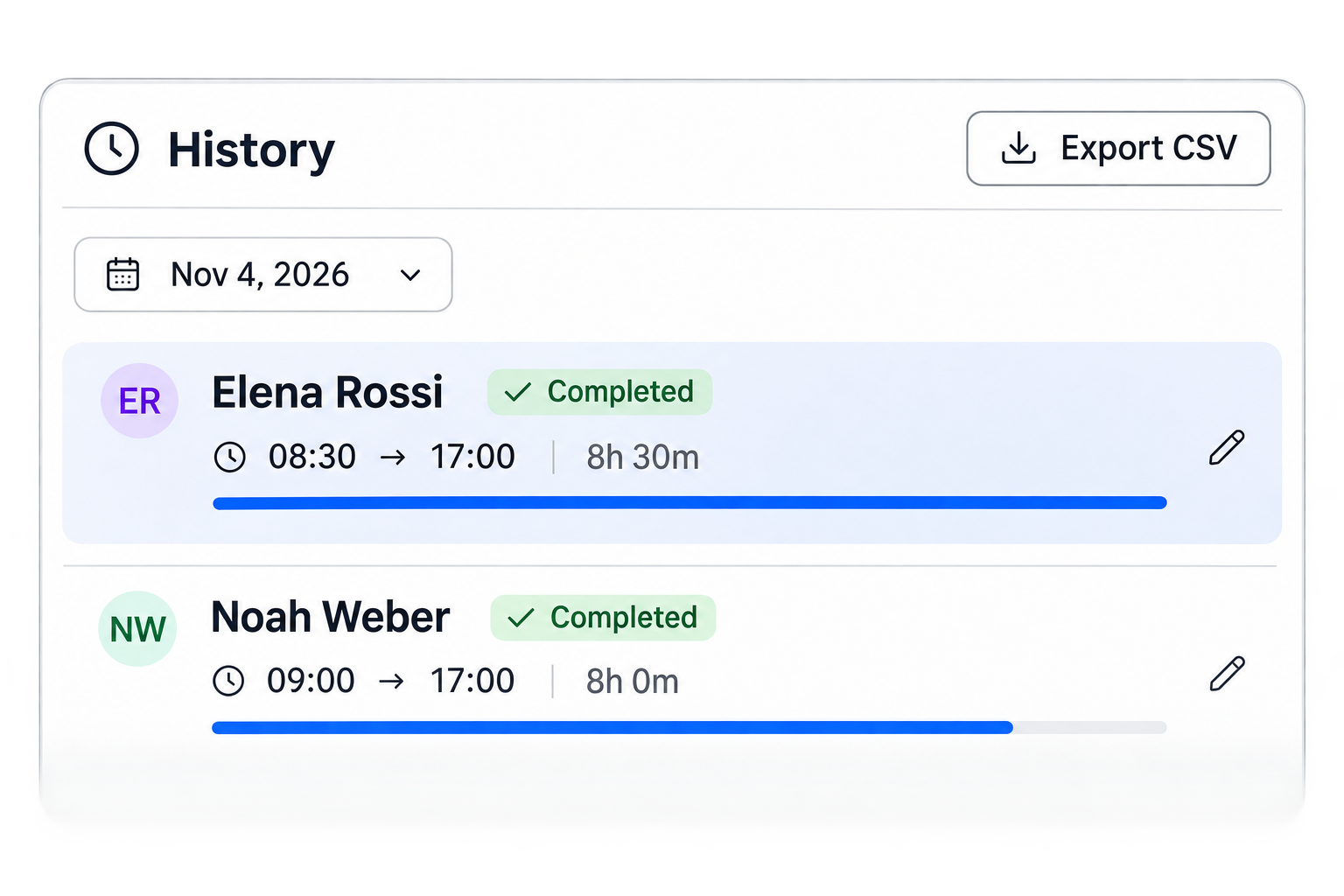
Look through arrivals, departures and completed session hours in Attendance History. Filter by date and, with team access, find the person whose records you need. Employees can review their own history. The Team view gives authorized users a check-in overview based on recorded sessions.
Corrections
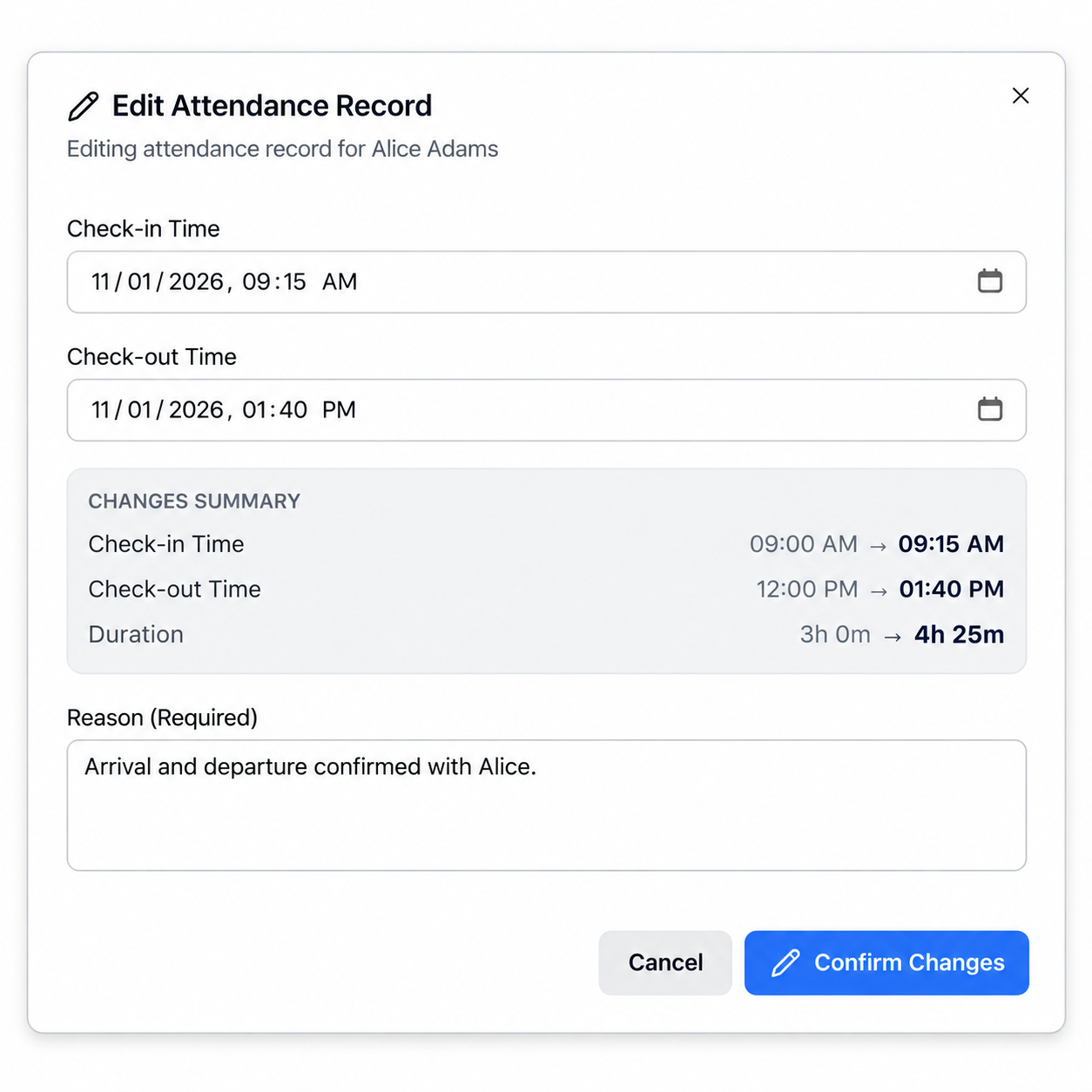
Correct a missed or incorrect time
If a session has no departure time, an authorized user can add it with a reason. Existing arrival and departure times can also be edited.
Absences
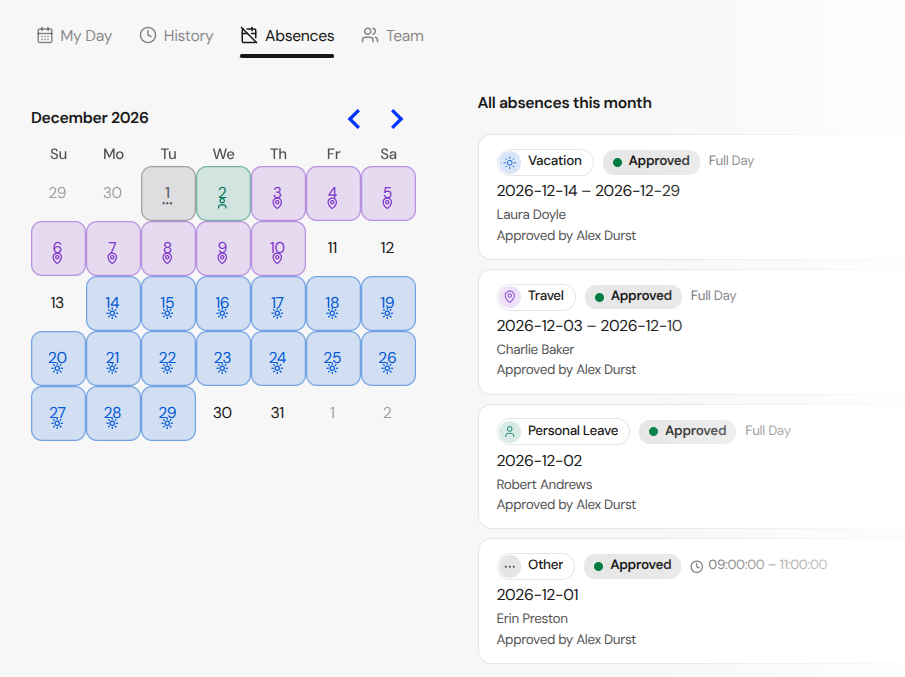
Give time away an explicit decision
Employees can request full days away or a partial interval on a single day. Authorized reviewers approve or reject pending requests, and employees can see the resulting status. Owners can also record time off for someone directly; those entries are approved immediately.
Review a record in your own workspace
Try the Attendance workflow with your own record, then inspect the times and the CSV you can take away.
No credit card required.
Take the record further
Download attendance records and set the working hours you expect.
CSV export
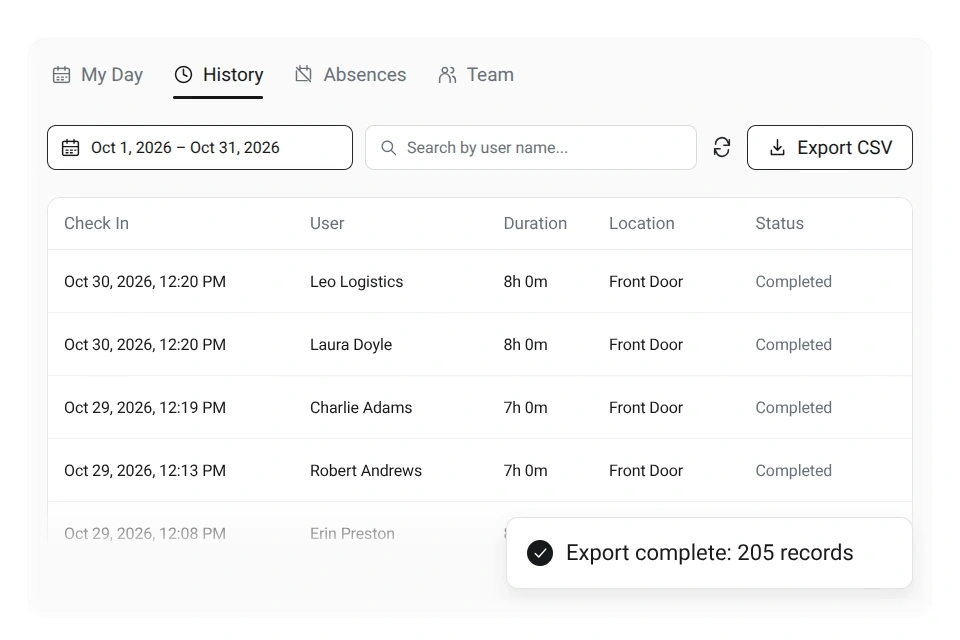
Download the period you need to review
Export filtered Attendance History as CSV, with a row for each session across the selected range. For a closer look at one person, authorized users can open their report to review daily attendance alongside time-off records and download a separate CSV.
Expected hours
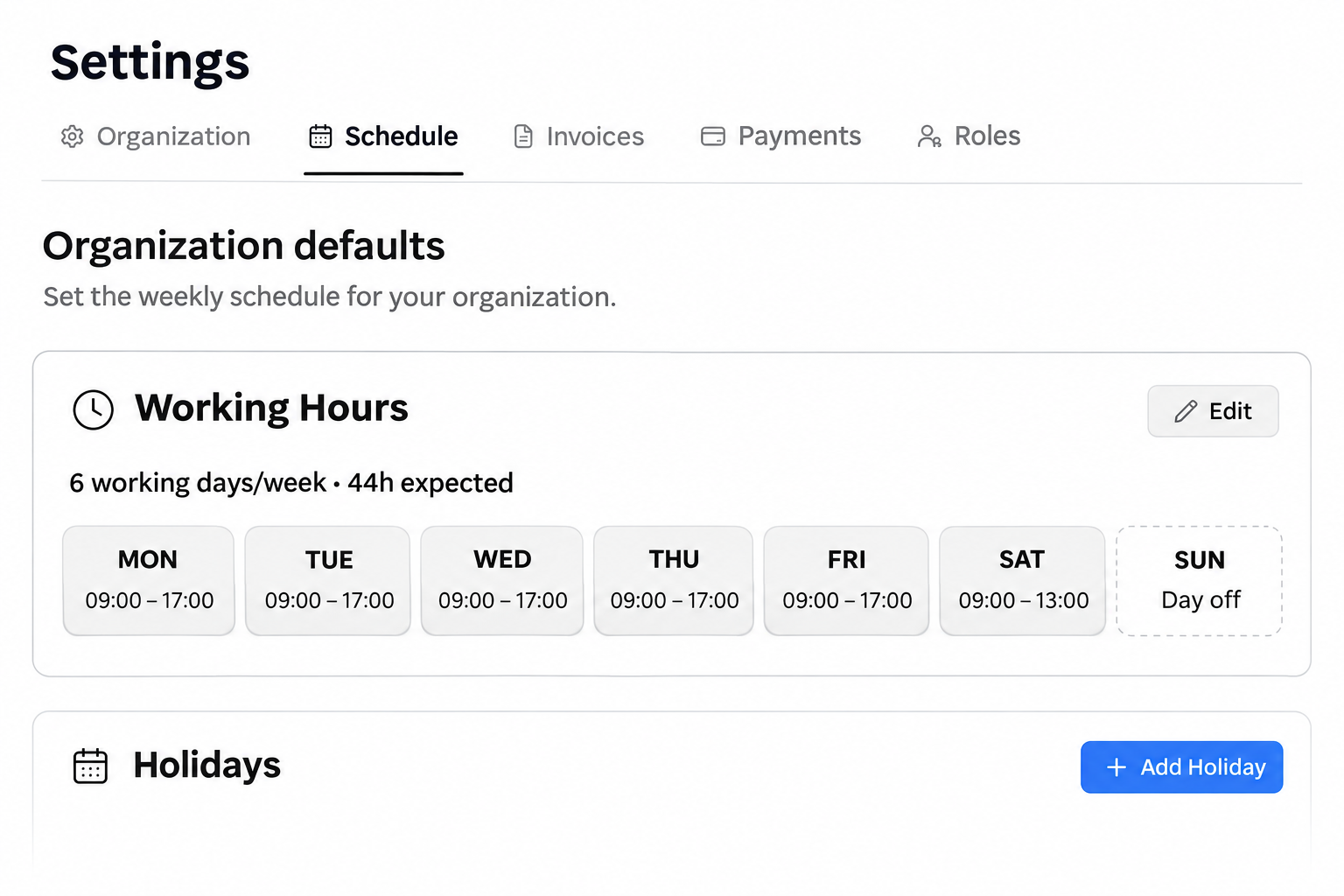
Set the hours you expect
Use organization working hours, employee schedules and dated overrides to describe expected working time. Employees can inspect their own schedule.
Keep the review in context
Attendance history
Review arrivals, departures and completed session hours in one place.
Dates and people
Choose a date range in History. Authorized team viewers can search names or email addresses.
One person’s report
Review a person’s daily attendance and time-off records in their report.
Questions about Attendance
Can employees review their own attendance?
How do I correct a missing departure?
Can employees request time away?
What does the History CSV contain?
How do I set expected working hours?
What should I try first?
Try one record from entry to export
Enter an attendance record, review it in History and download the CSV.
No credit card required.
- Enter arrival and departure. Add the times with a short reason.
- Find and export it. Select the date range in History and download the CSV.