
Inventory
Know what is in stock and why
Set up items and variants, record every stock movement with a reason and follow purchase orders from supplier to shelf.
14 days free trial.No credit card.
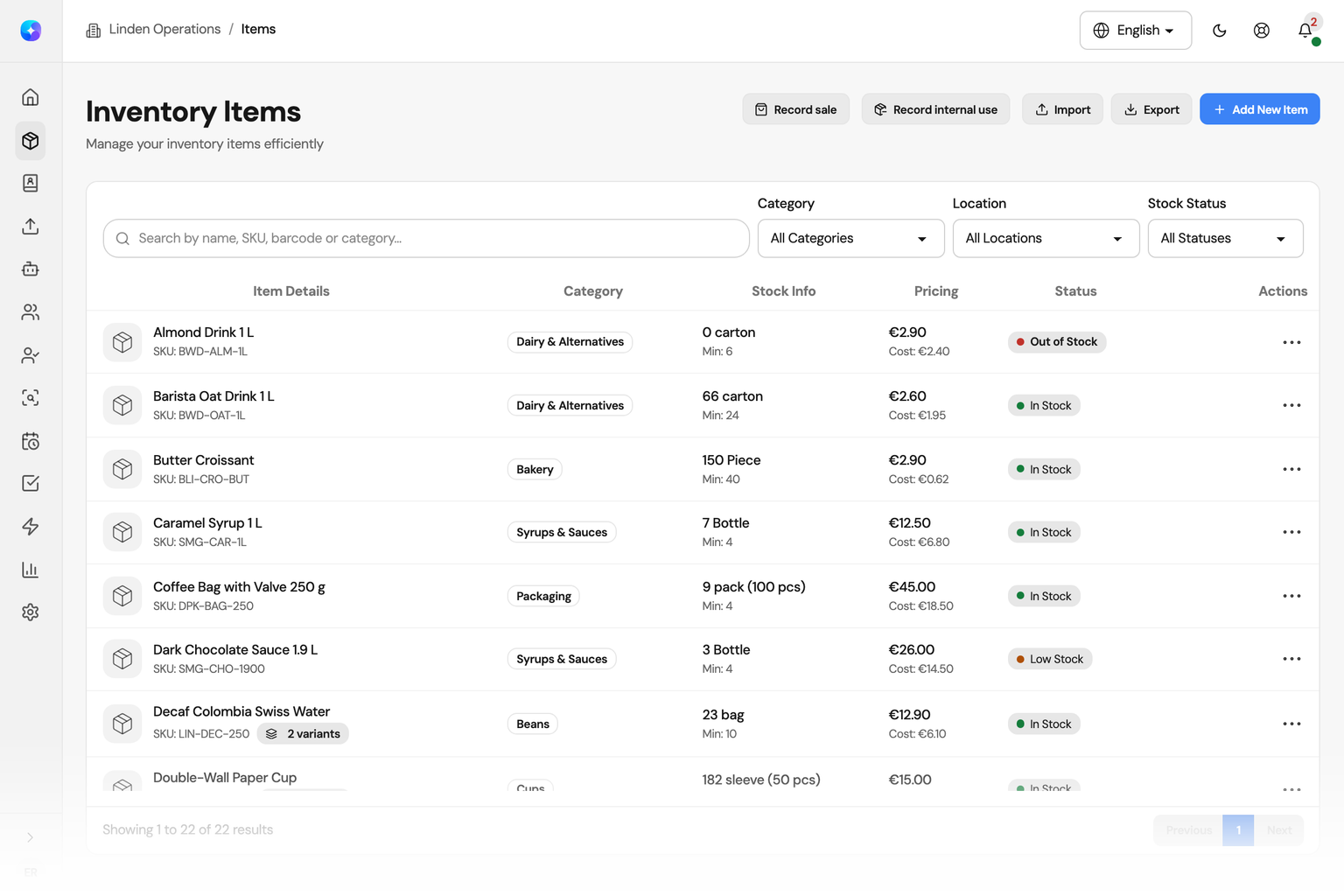
One record behind every quantity
A spreadsheet shows a number. Orchido shows the number and every movement that made it.
With a spreadsheet
- A quantity changes and nobody knows why.
- Orders and deliveries sit in email threads.
- Stock moves between rooms on a note.
With Orchido Inventory
- Each change is a movement with a reason, a person and a time.
- Purchase orders go from draft to received in one place.
- A transfer between locations is recorded on both sides.
Every unit has a record
Set up items, record what comes in and goes out, and count what is on the shelf.
Items and variants
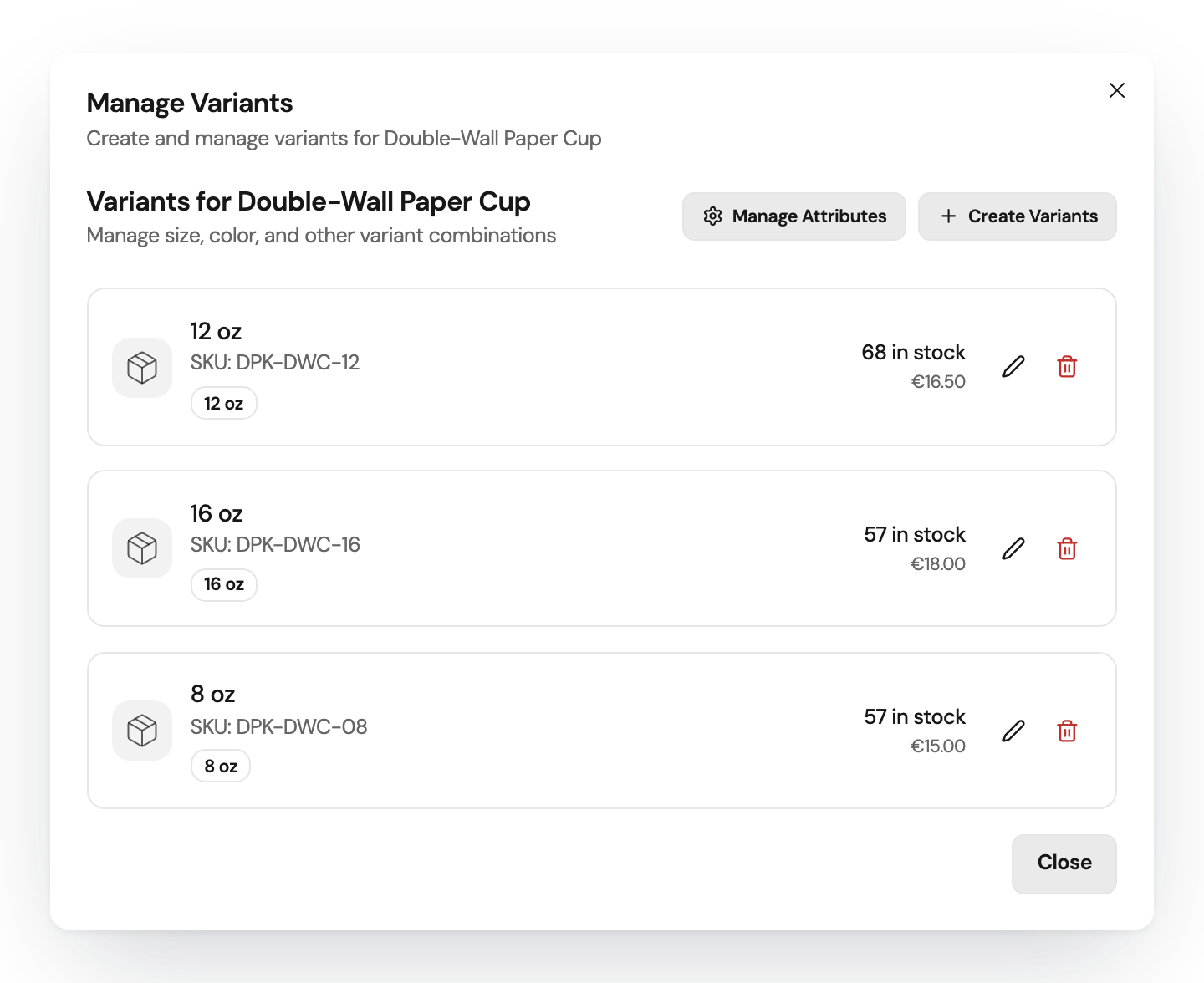
Set up items once
Group items in categories. Define attributes such as size, color and material, and build variants from them. Each variant has its own SKU, barcode, minimum and maximum stock level, and its own stock.
Barcodes
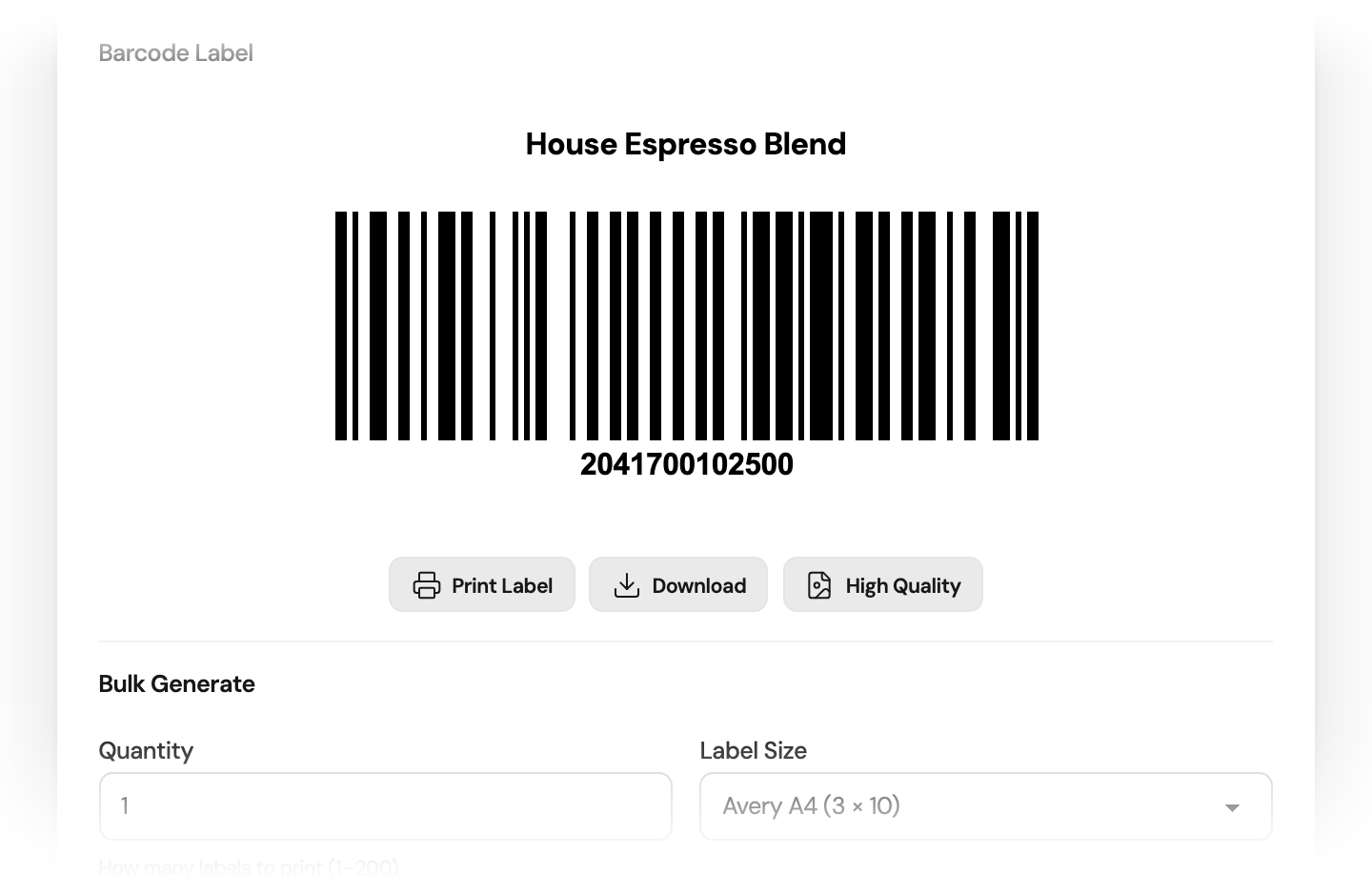
Scan the barcode on the product
Use the camera to read the barcode when you set up an item. Orchido reads EAN, UPC, Code 128, QR codes and more. If a product has no barcode, generate one and print labels.
Stock movements
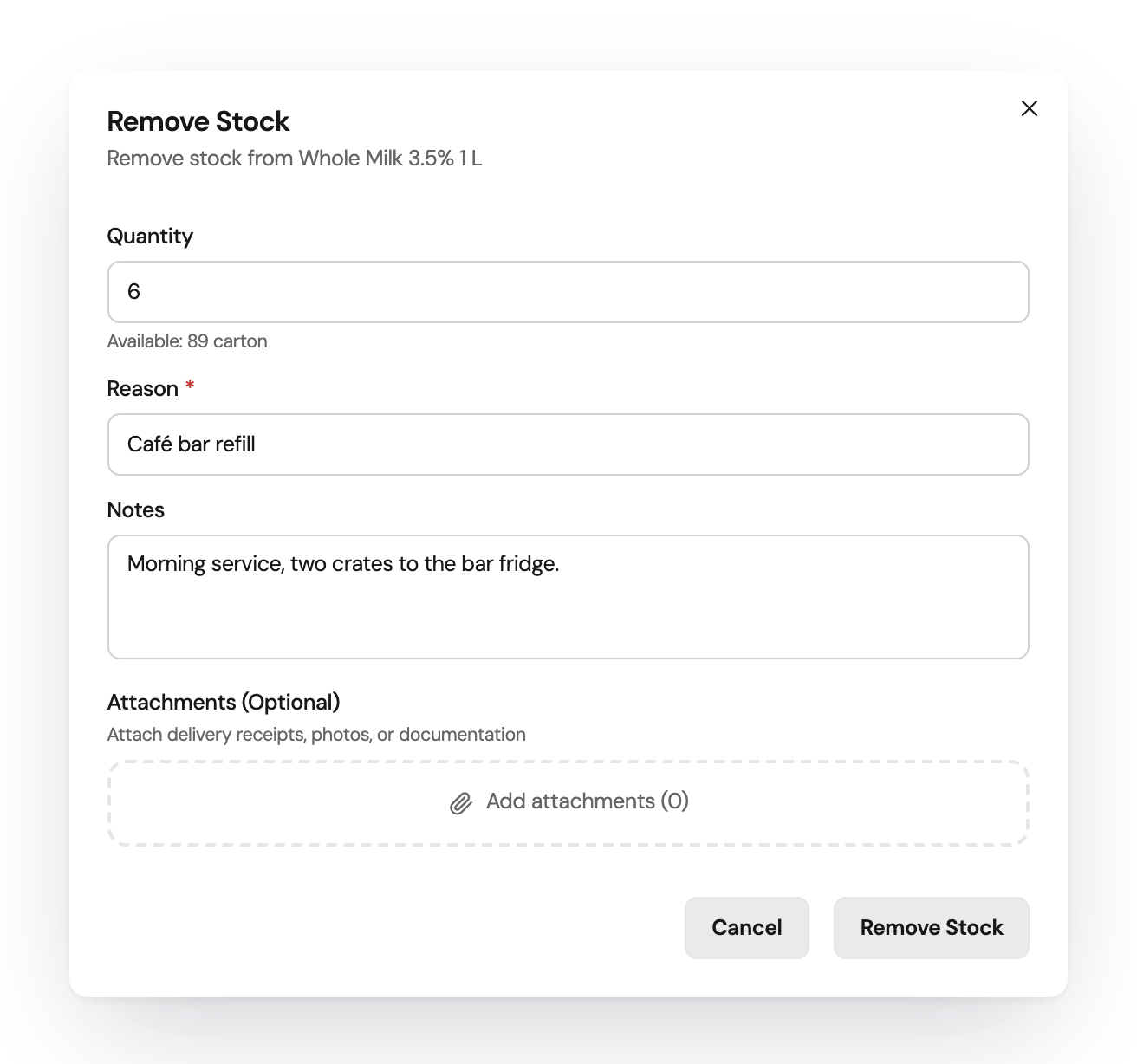
See why a quantity changed
Take or put stock with a reason. Attach delivery notes or photos. Each movement keeps the quantity, the person and the time. A mistake is corrected with a new movement, so the history stays complete.
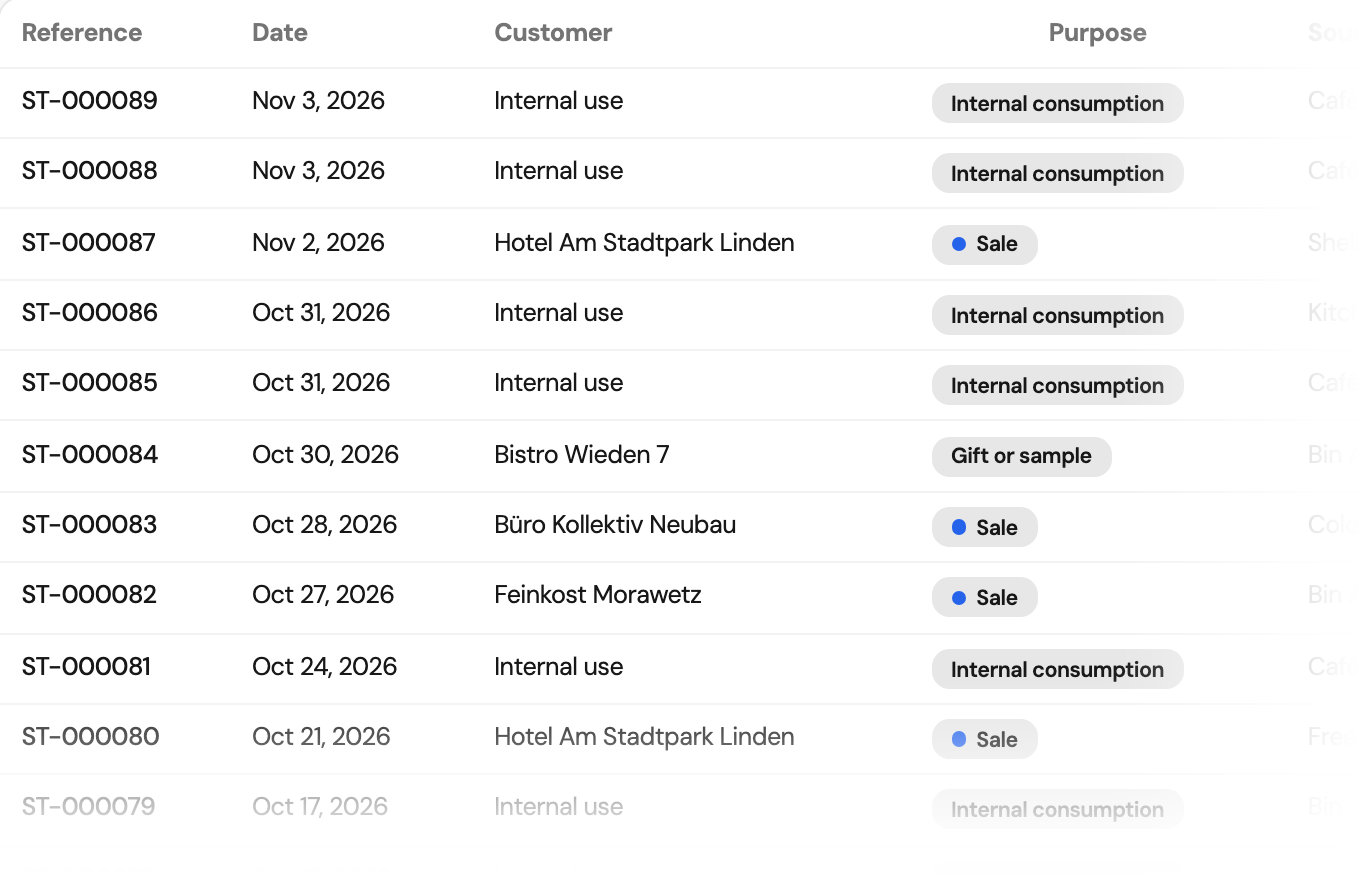
Sales and usage
Record what leaves the stock
Record a sale, a gift or a sample to a customer, or stock your team used itself. Each supply takes the quantity out of stock. Add an invoice and correct a recording mistake later.
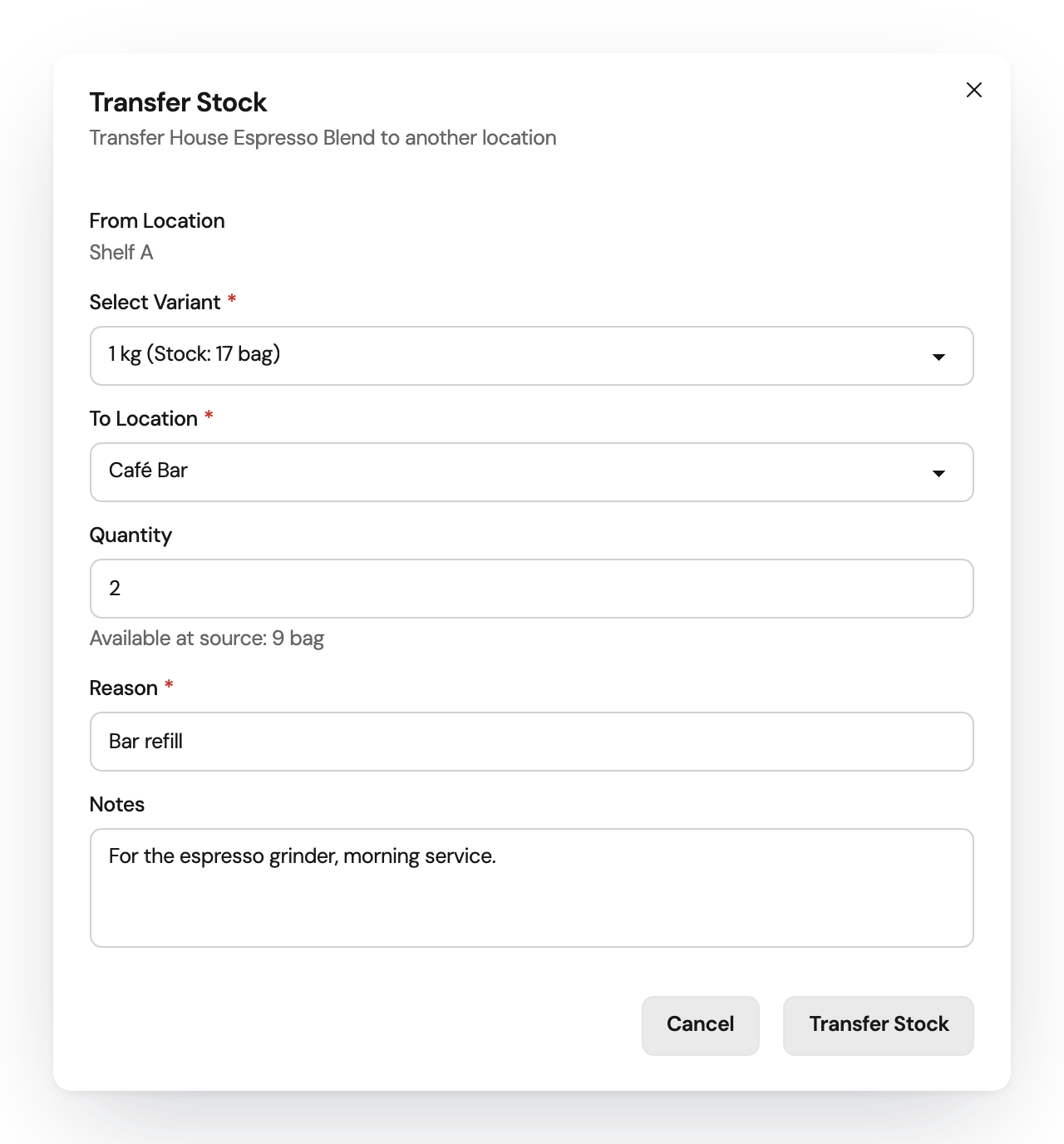
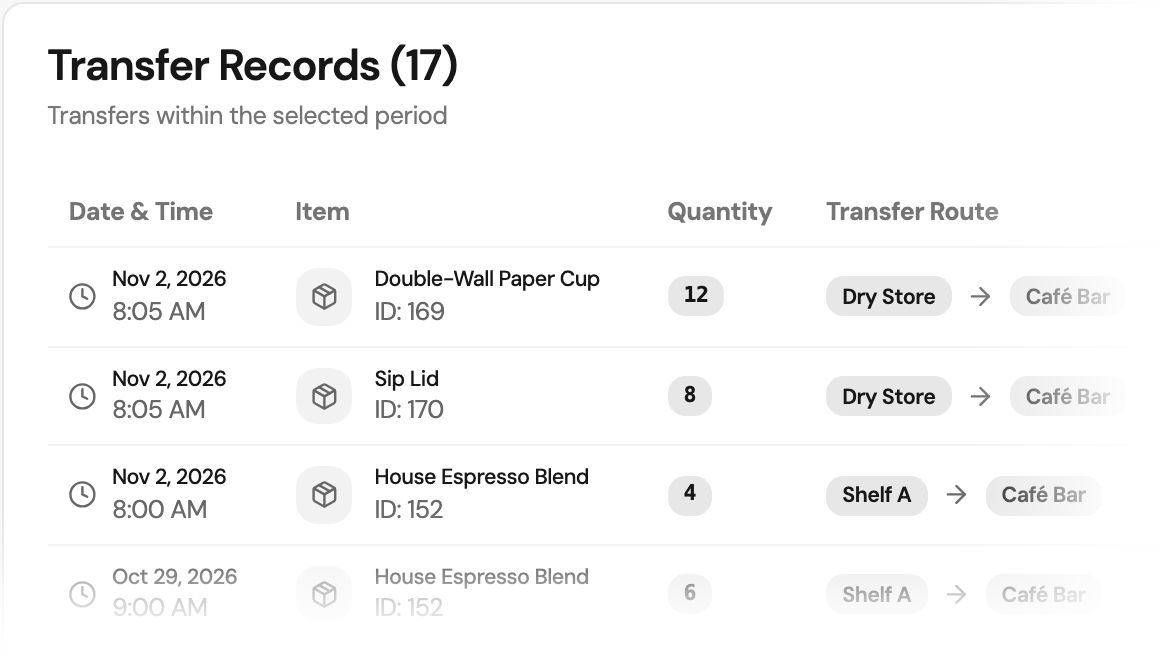
Locations
Move stock between storage places
Build a structure of warehouses, rooms, shelves, bins, cold storage and freezers. A transfer is recorded at both locations.
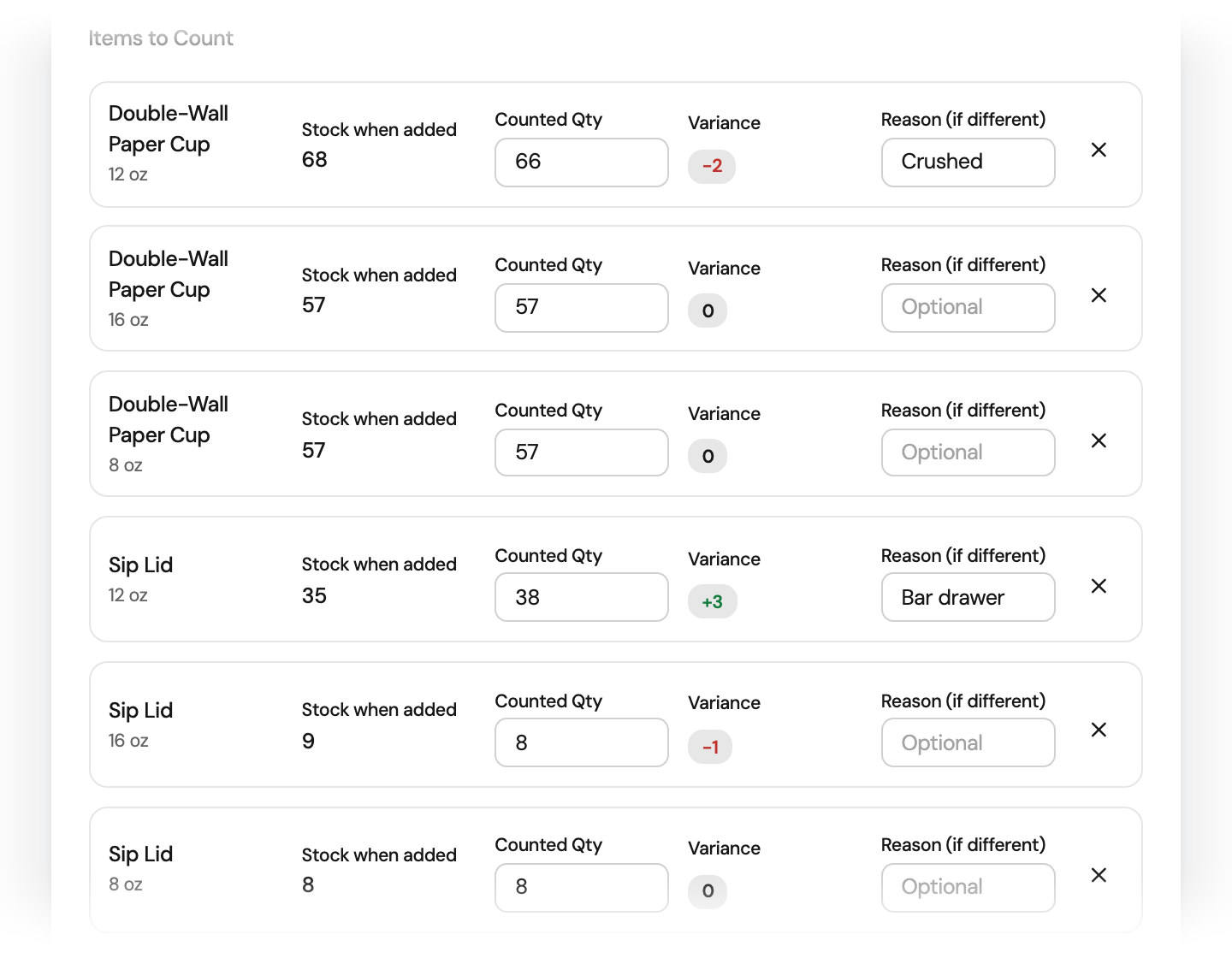
Stock counts
Count the shelf, then approve
Enter the counted quantities in a stock count. When the count is approved, each difference becomes a stock movement.
Record your first stock movement
Add an item, take some stock and read the movement in its history.
No credit card required.
From supplier to shelf
Order from suppliers, receive the goods and keep stock above its minimum.
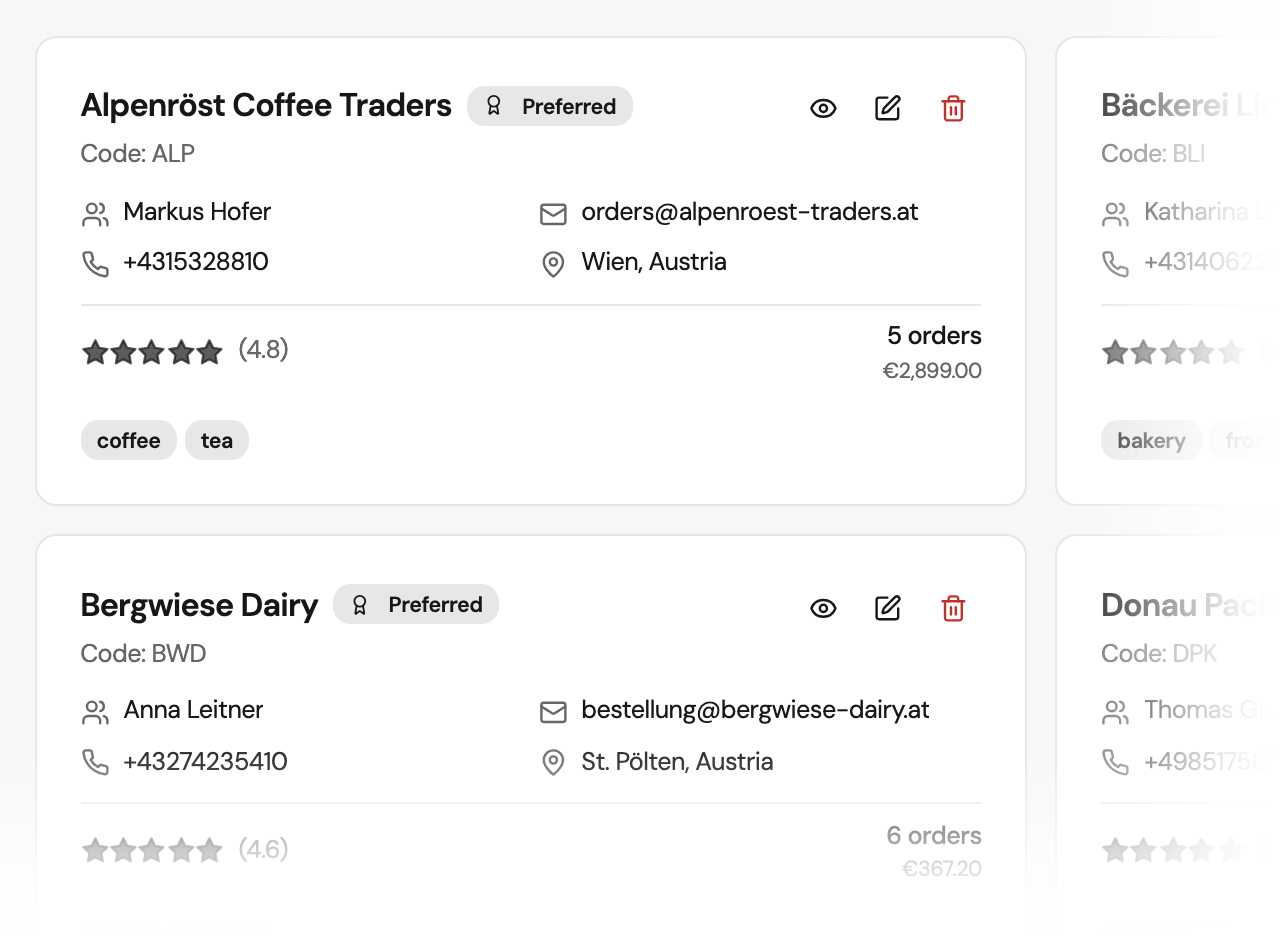
Suppliers
Keep supplier details in one place
Store contacts, address, VAT number, payment terms and currency for each supplier.
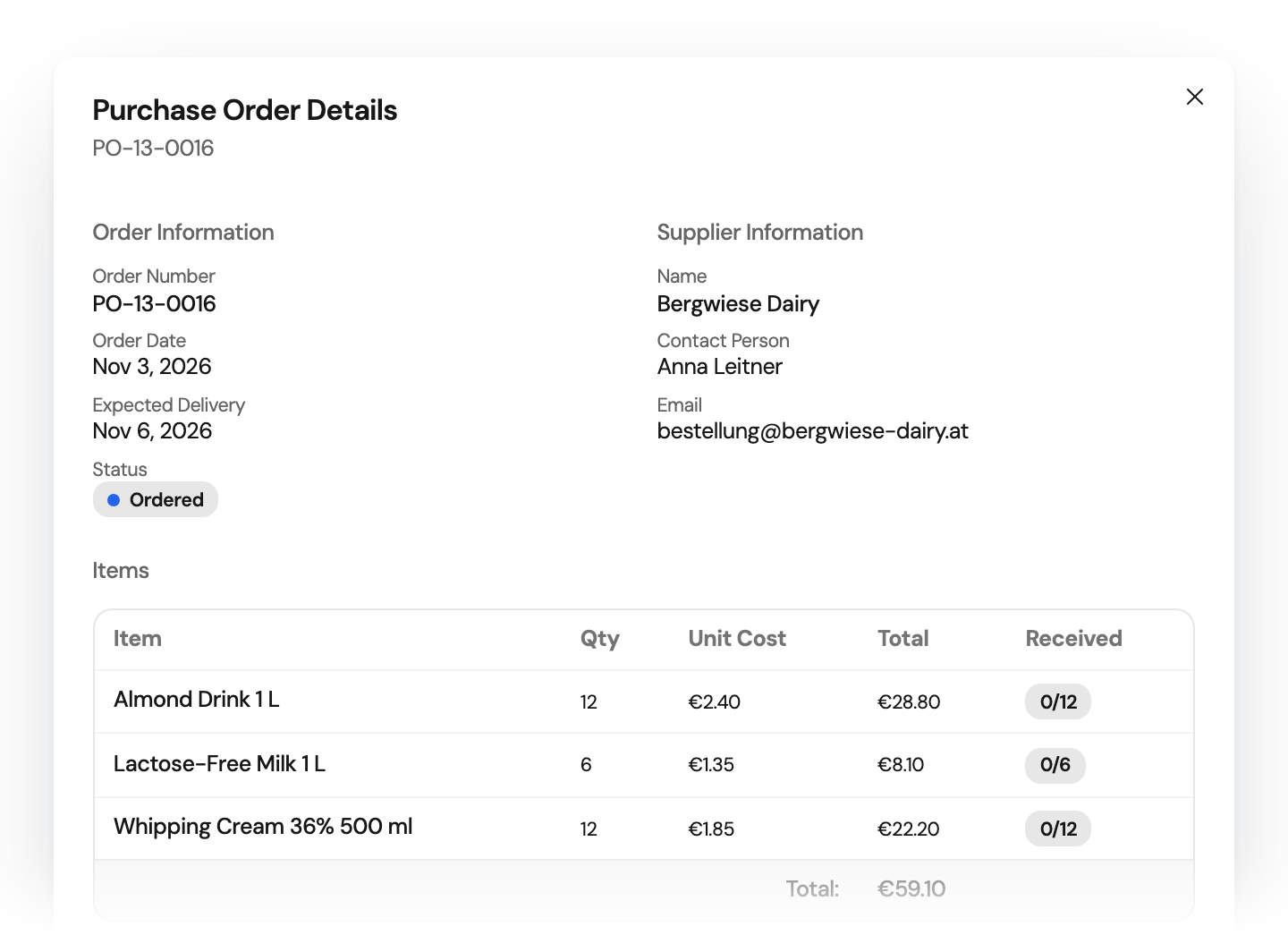
Purchase orders
Follow an order from draft to delivery
Create a purchase order, approve it and mark it as ordered. Its status shows where the order stands.
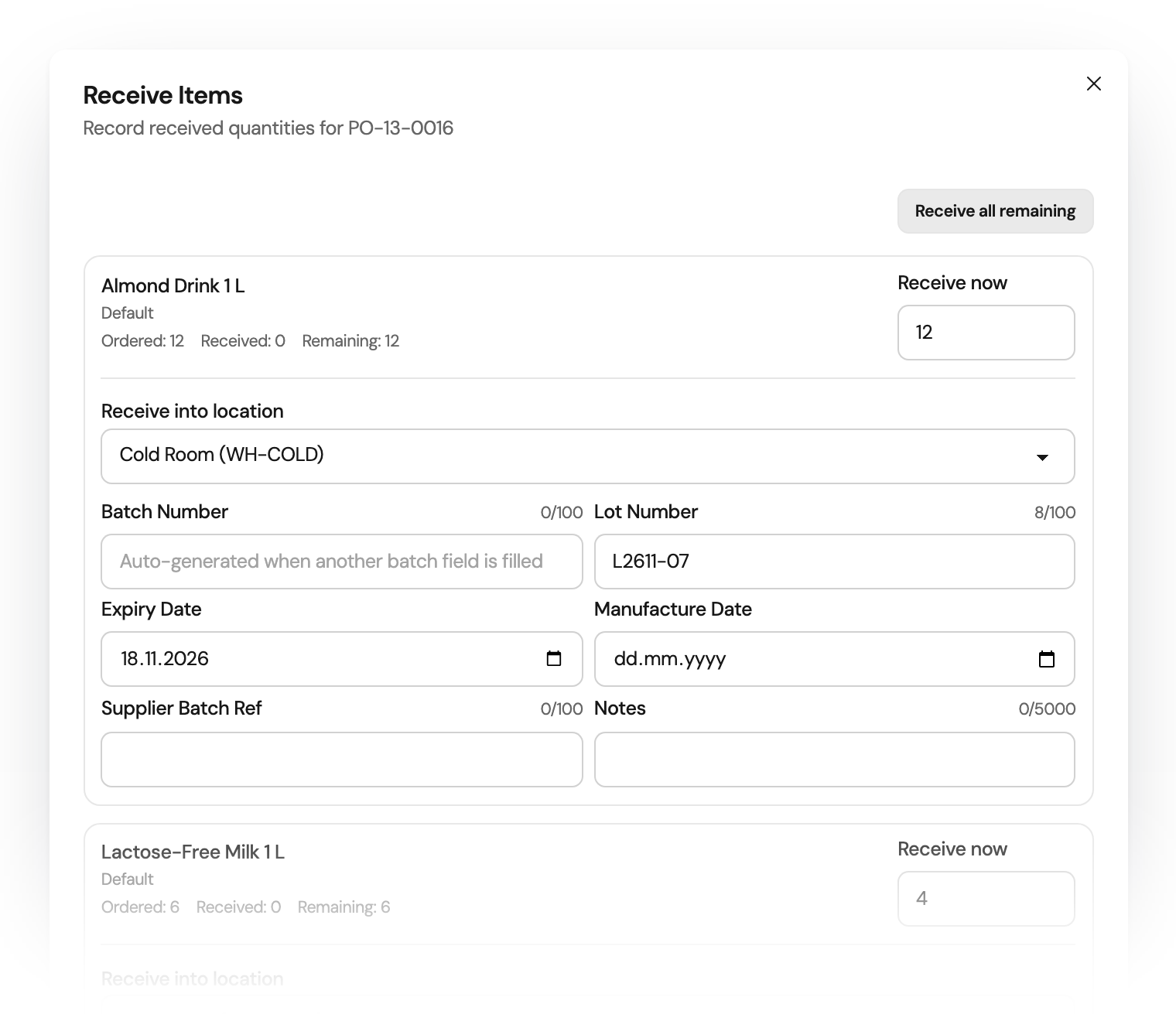
Receiving
Receive what actually arrived
Receive a full or a partial delivery. Orchido adds the quantity to stock and places it in a location. An order that is not complete stays partial.
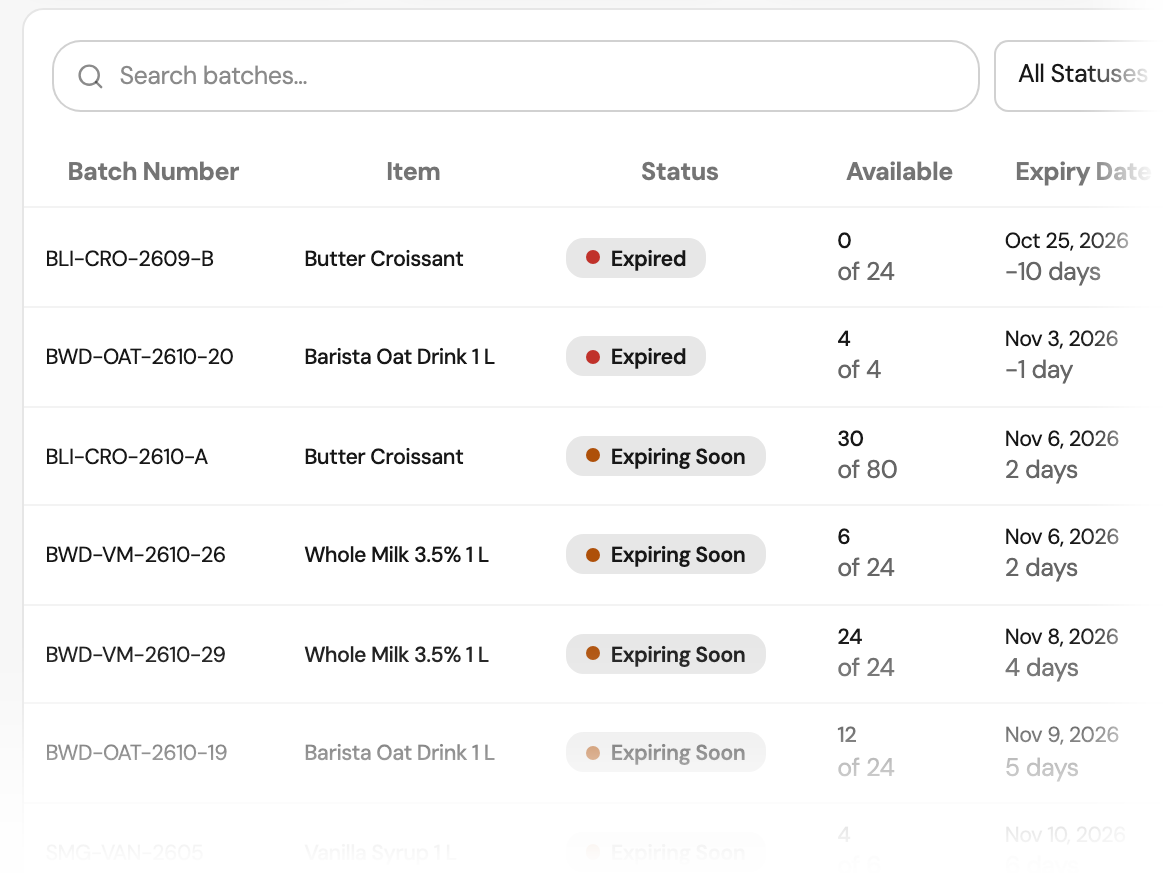
Batches and expiry
See what expires first
Track batch and lot numbers with expiry dates. The expiry report lists the batches that expire soonest first. Write off expired or damaged stock, or lower a batch balance to what was counted.
Professional plan
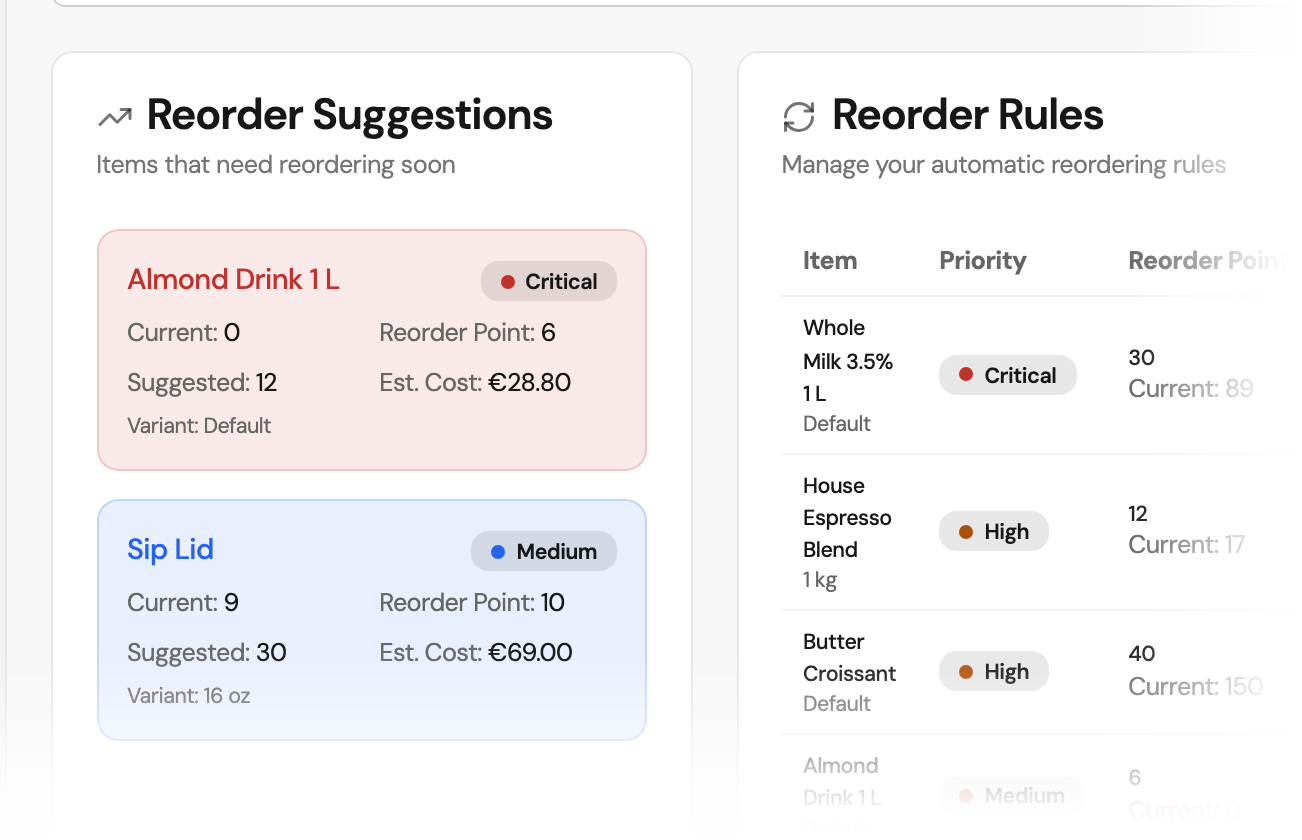
Reorder rules
Let low stock draft the next order
Set a reorder point and quantity for an item. When stock reaches that point, Orchido drafts a purchase order. Nothing is ordered until a person approves it.
Professional plan
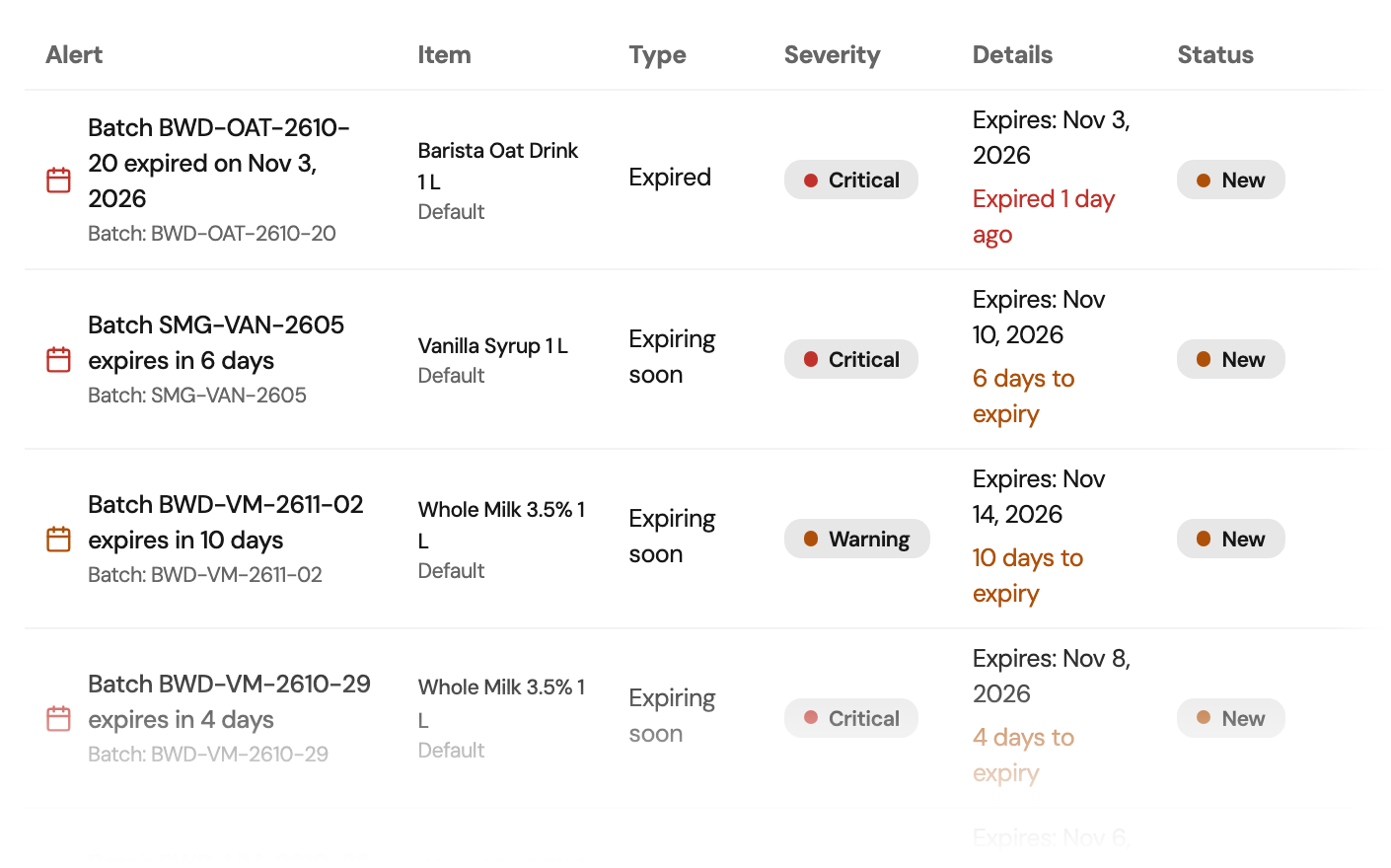
Stock alerts
See what needs attention
Orchido raises an alert when stock falls below its minimum or reorder point, and when a batch expires soon. Acknowledge an alert, then mark it resolved when it is handled.
Professional plan
Overview, review and reports
See the state of your stock, review every movement and take the data with you.
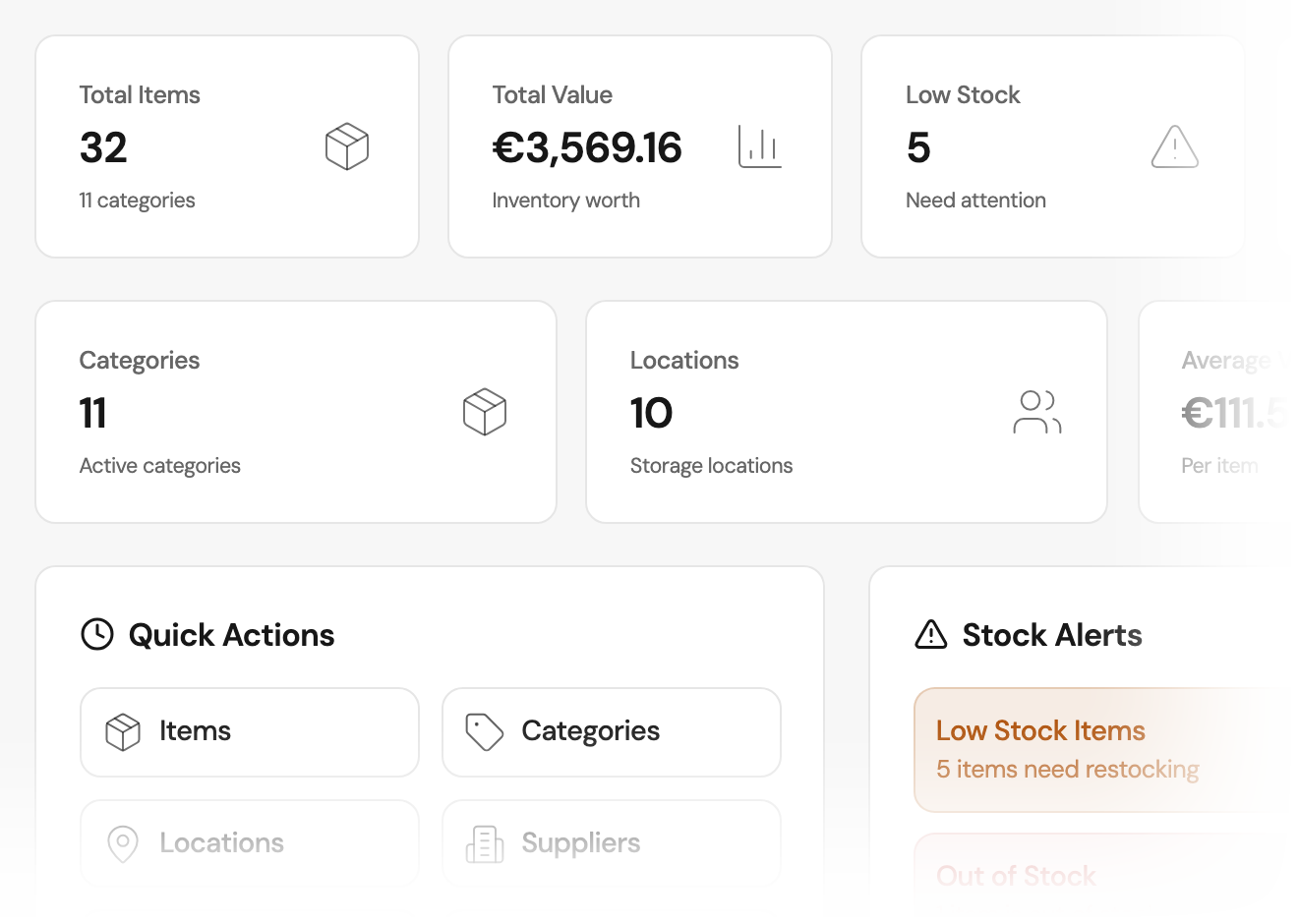
Dashboard
See your stock at a glance
One screen shows the worth of your stock, the items below their minimum, the items out of stock, and your categories and storage locations.
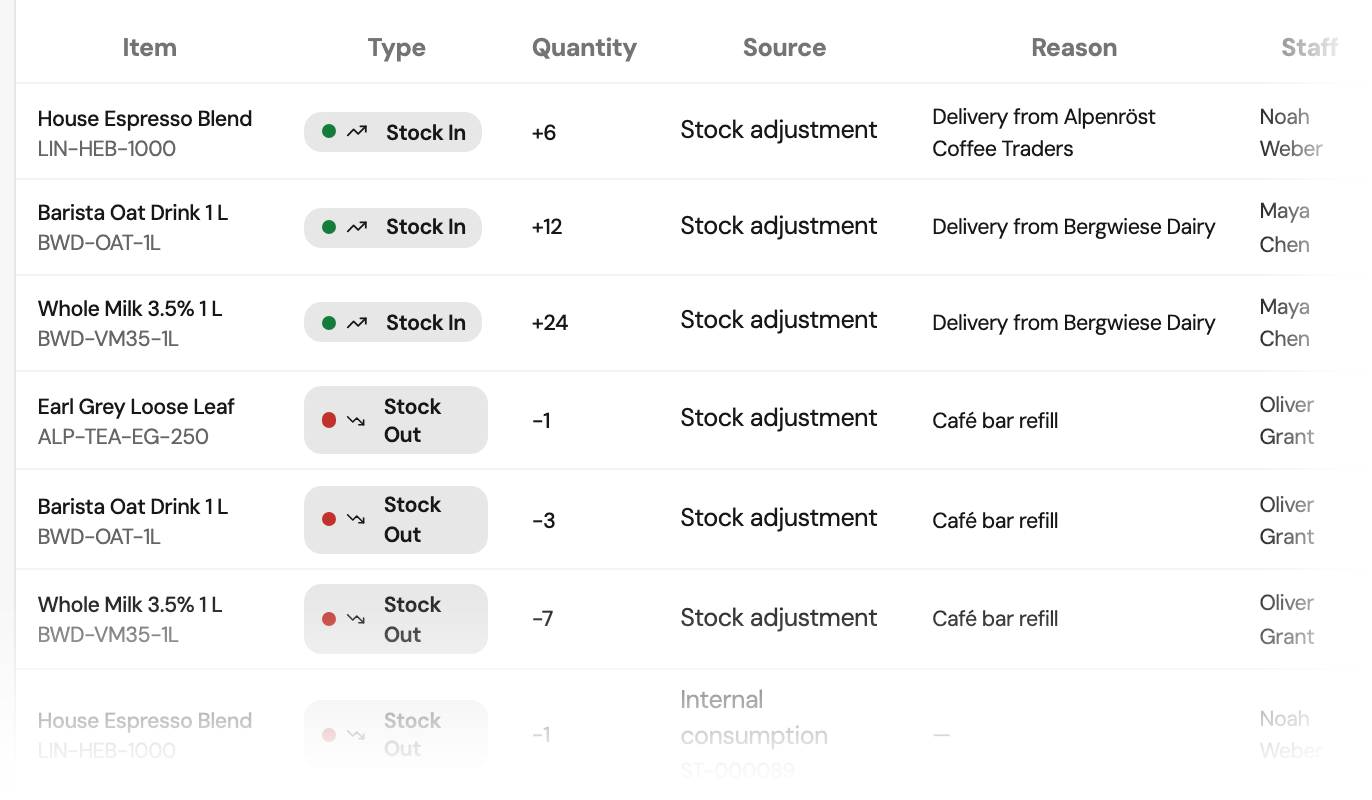
Inventory activity
Review every take and put
See all stock movements with their reason, person and attachments. Search by item, SKU, reason or person, and correct the details of a movement.
Reports
Read value, age and movement
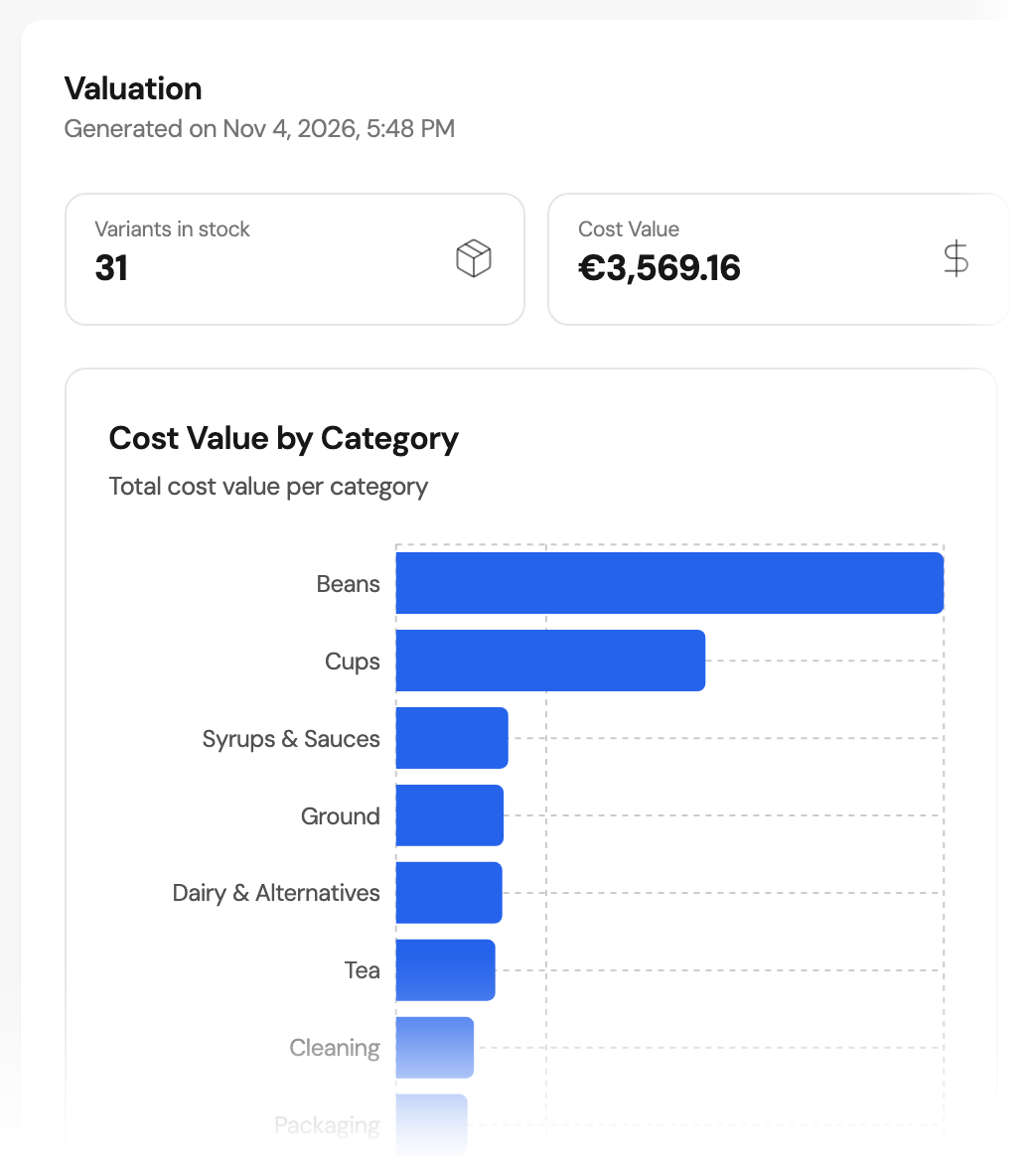
Four reports: valuation, aging, movements and low stock. Value stock at current cost, FIFO, LIFO or average. Export each report as CSV.
Import and export
Bring your item list with you
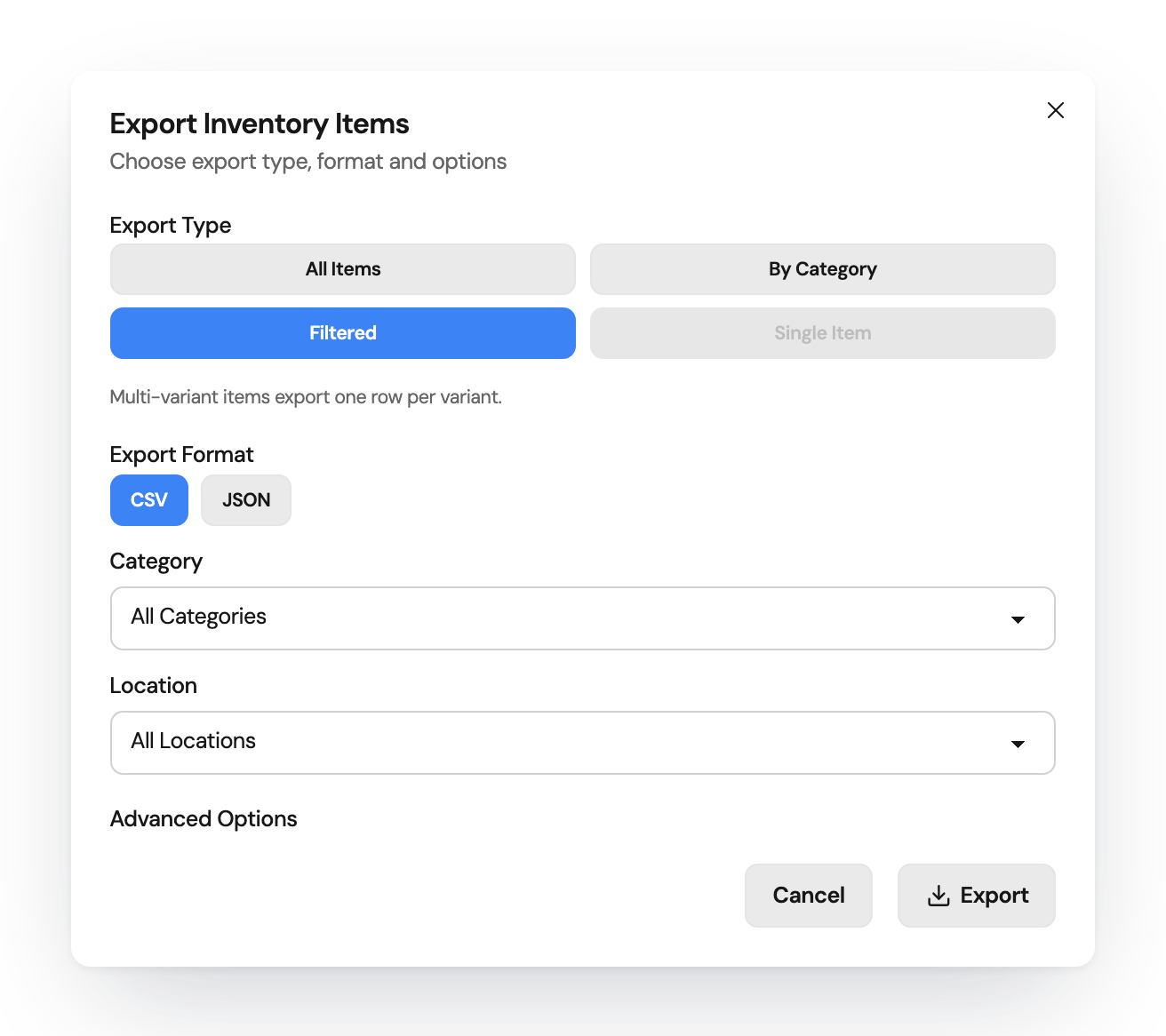
Import items and categories from a CSV file. Export all items, one category or one item as CSV or JSON.
Built around the stock record
Stock per variant
Each variant has its own SKU, barcode and stock level.
Complete history
Movements are added to the history. A correction is a new movement.
Low-stock report
See which items are below their minimum, on every plan.
Questions about Inventory
Can I import my current item list?
How do I fix a wrong quantity?
Does Orchido send purchase orders to suppliers?
Which plan includes batches, reorder rules and stock alerts?
Can I print barcode labels?
What should I try first?
Try one item from setup to report
Add an item, record a movement and read it in a report.
No credit card required.
- Add an item. Give the variant a SKU and a minimum stock level.
- Move and read. Take stock with a reason, then open the movements report.